Local-first monitoring for Power Automate

Stay on top of every flow

Your flows do the automating — FlowOversee adds the overseeing. A companion Windows app that puts every Power Automate cloud and desktop flow in one place: what ran last night, what's failing right now, what's scheduled for next Tuesday, and what quietly never ran at all. Read-only, private, and running entirely on your own machine.

FlowOversee is an independent product for Microsoft Power Automate and is not affiliated with, sponsored by, endorsed by, or certified by Microsoft Corporation.

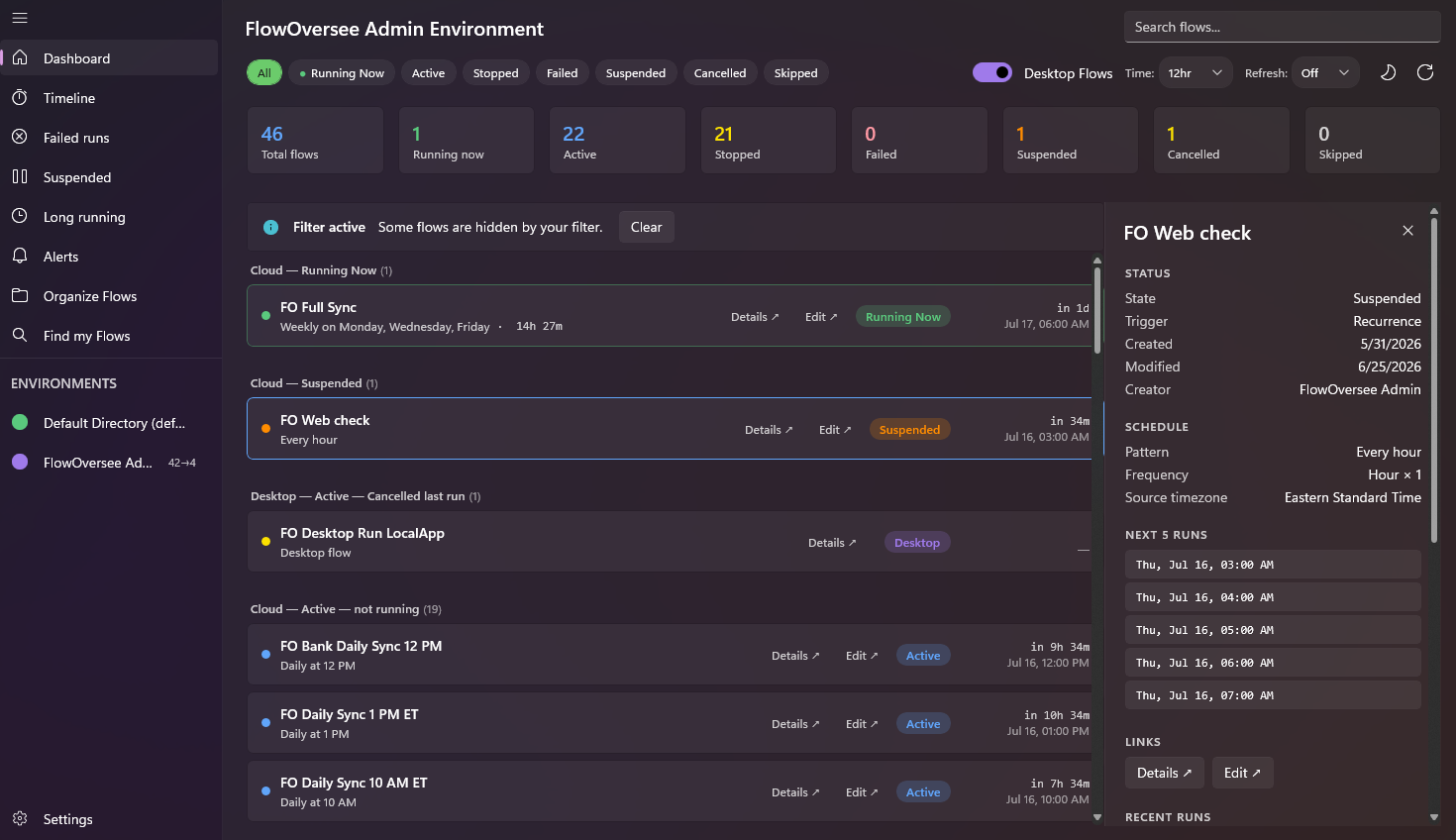
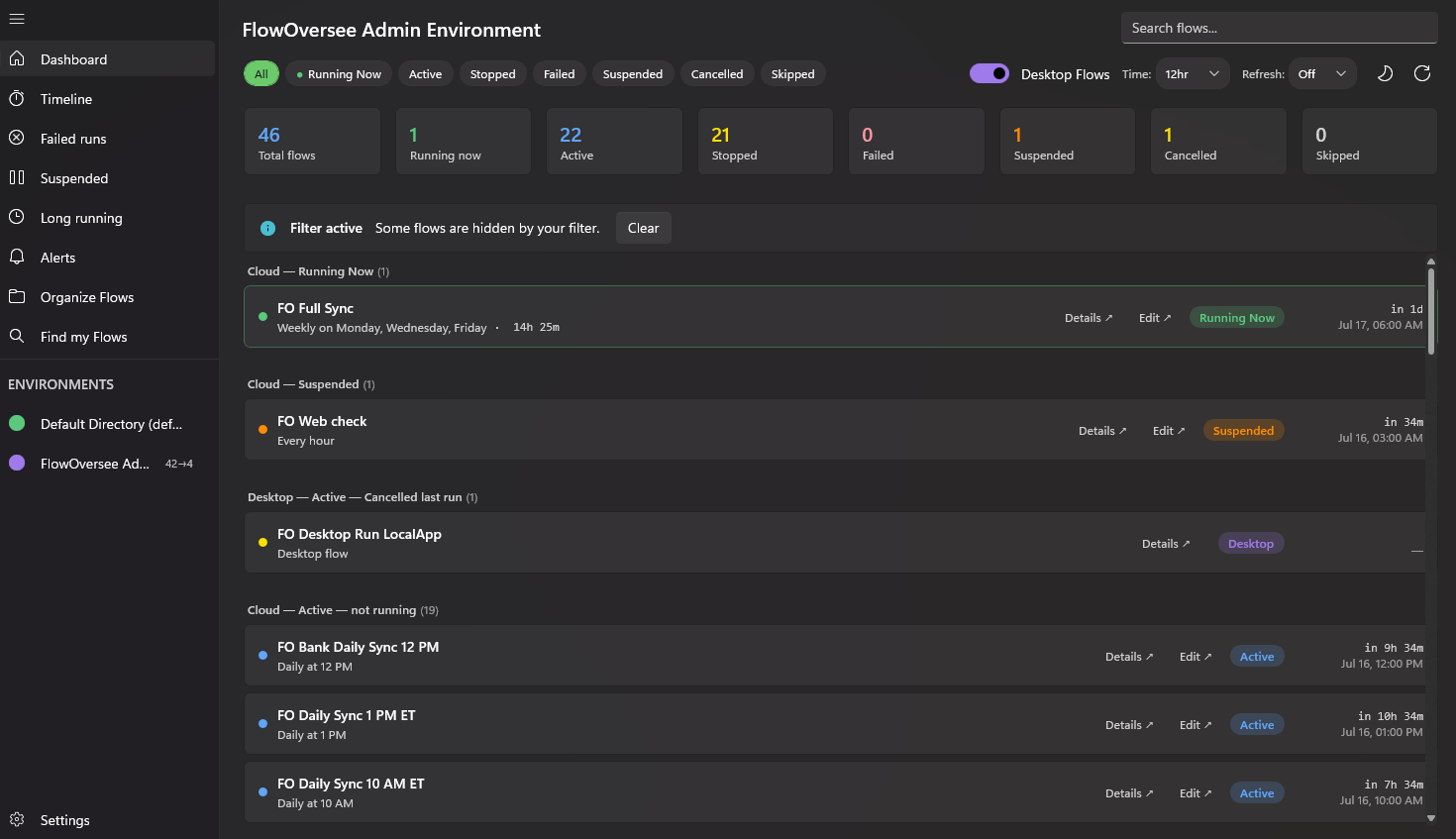
FlowOversee — Admin Environment
FlowOversee dashboard showing cloud and desktop Power Automate flows grouped by status
Add your screenshot Save it as images/dashboard.png
100% local — no telemetry
Read-only access
Cloud & desktop flows
Designed for Microsoft Power Automate

Your data never leaves your device

FlowOversee talks only to Microsoft's own endpoints, using your own credentials, to read your own flows. It has no server, no account system, and collects nothing. Sign-in happens through the native Windows account broker, so your organization's Conditional Access and MFA policies apply as normal — and sign-in tokens are encrypted with Windows DPAPI and stay on your machine. Want extra layers? Optional security settings let you keep no sign-in data on disk at all, and require Windows Hello before FlowOversee opens.

No telemetry No crash reporting No ads No data selling Read-only access DPAPI-encrypted tokens Conditional Access compatible Optional Windows Hello lock Optional no-disk sign-in mode
Try it right now

Test-drive FlowOversee in your browser

A live simulation of the app — click through the dashboard, run timeline, Daily Monitor, and alerts, all on sample data. Nothing to install, nothing to sign into.

Launch the interactive demo Runs entirely in your browser · simulated data · no tracking, as always.
FlowOversee — Demo Environment Simulation
FO Nightly Export
Cloud · failed 2:14 AM
Failed
FO Customer Onboarding
Cloud · running · 12:40 elapsed
Running
FO Daily Sync 12 PM
Cloud · every day · last run 12:00 PM
Active
FO Run Weekly Report
Desktop flow · cancelled last run
Cancelled
Flow run failed FO Nightly Export — Demo Environment
The whole picture

Your flows in one place

FlowOversee puts status, failures, and history in one application — and keeps it current.

One dashboard for every status

Running, active, stopped, failed, suspended, cancelled, skipped — every flow sorted and counted as soon as the app loads.

  • Live counts for the environment you're viewing
  • Filter by status, search by name
  • Optional auto-refresh on a preset interval, or refresh by hand
Explore the Dashboard →
6
Total flows
0
Running now
2
Active
0
Stopped
2
Failed
1
Cancelled

Failures surface themselves

The flows that need you — failed, suspended, or stuck running too long — surface to the top, grouped and labelled.

  • Failed & cancelled last-run grouping
  • Suspended and long-running views
  • Jump straight to details or the maker portal
Explore Failed Runs →
FO Desktop Wait
Desktop flow · failed last run
Desktop
FO Run Macro
Desktop flow · failed last run
Desktop
FO Run Weekly Report
Desktop flow · cancelled last run
Desktop
FO Monthly Summary 11 AM ET
Cloud · next run in 7d
Active

Your daily checklist: did everything run?

The Daily Monitor turns "I think the jobs ran" into a checked list. Pick the flows that matter — scheduled, triggered, or desktop — and each day FlowOversee marks every one off against its actual run history: completed, failed, still pending, or never ran.

  • Knows each flow's schedule and expected time, with a grace window — a 5:02 start still counts for the 5:00 job
  • Named templates per environment — "Monday–Friday jobs", "Month-end" — each keeping its own day-by-day history you can revisit for weeks
  • Build your list in-app or import it from a CSV/JSON file — the flow export matches the format exactly
  • Set a status by hand, with a note, when you know better — manual calls are never overwritten by a re-check
  • Turned-off flows are flagged, so nobody waits on a job that can't run
Explore the Daily Monitor →
FO Daily Sync 12 PM
Every day · Eastern Standard Time · 1 run
Completed
FO Site Refresh 9:30 AM
Every day · Eastern Standard Time
Not run
FO Legacy Export
Every day · Eastern Standard Time
Turned off
FO Catalog Batch 2 PM
Every day · manually set — "ran on backup machine"
Completed
FO Desktop Wait
Desktop · any run counts
Pending

It spots what looks off — before you go looking

FlowOversee learns each flow's own normal rhythm and flags what's off — a scheduled job that didn't run, a sudden jump in failures, a run dragging far longer than usual — in plain language, automatically once your flows have loaded. No thresholds to set up; it baselines every flow for you.

  • Missed and fewer-than-expected scheduled runs
  • Broken success streaks and failure rates above a flow's own baseline
  • Run-duration spikes — surfaced as plain facts, never guesses
Explore Alerts & Needs attention →
Needs attention
  • Catalog Sync — 12 runs expected in the last 24h, 0 observed
  • Nightly Export — Succeeded 18 runs in a row, then failed
  • Data Cleanup — 5 of the last 10 completed runs failed; 1 of the previous 40 failed
  • Customer Onboarding — Typically completes in 04:00; the last run took 13:20

Alerts that come to you

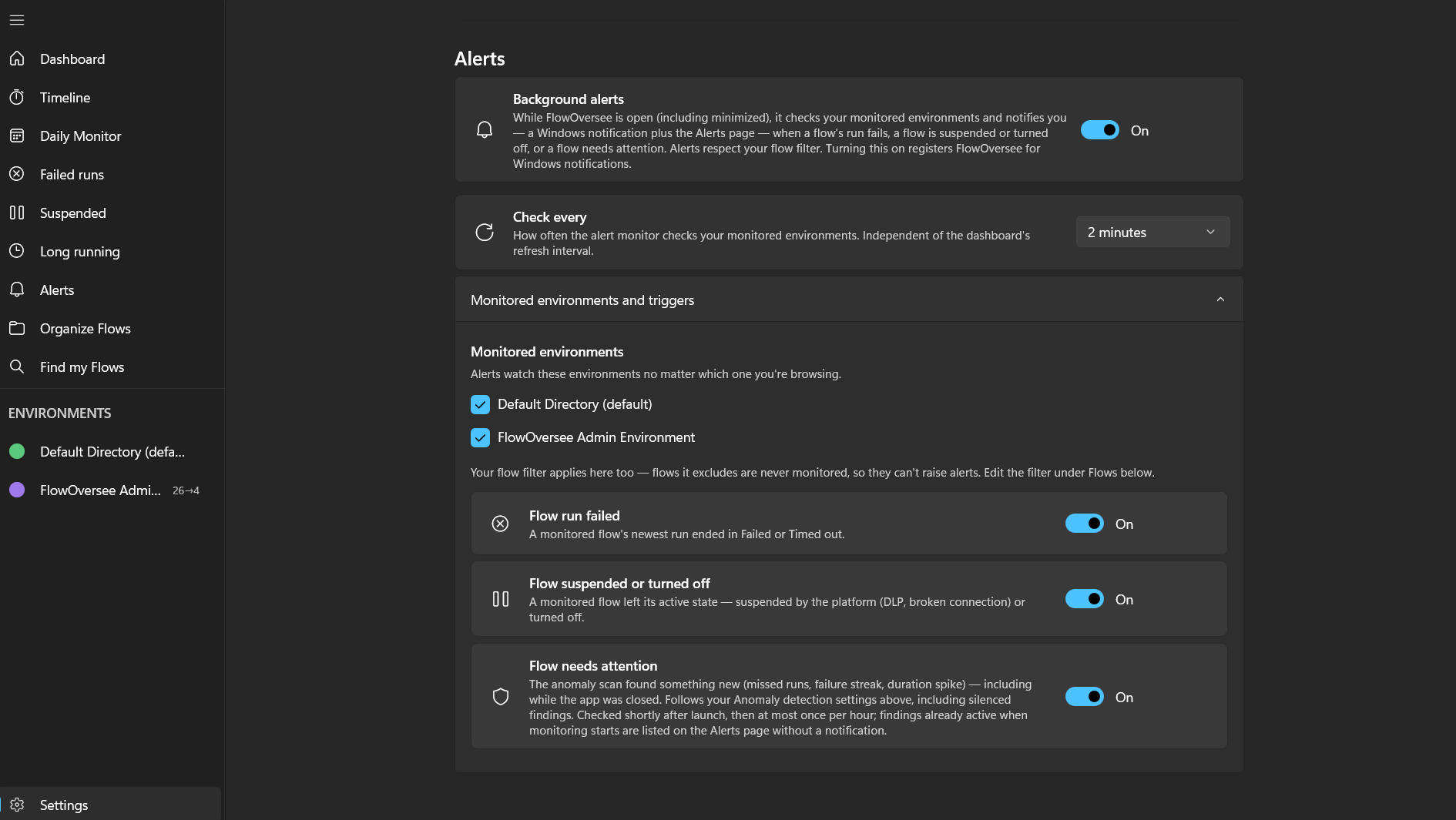
Optional background alerts: leave FlowOversee open — even minimized — and it keeps watch over the environments you choose, on the schedule you choose. When it detects a problem, a Windows notification tells you.

  • A Windows notification when a run fails, a flow is suspended or turned off, or a flow needs attention — each trigger has its own switch
  • Pick the environments to watch and the pace — from every 2 minutes to hourly, independent of the dashboard
  • Catches up on launch: shortly after you open the app, it flags new needs-attention findings that appeared since your last session
  • Everything also lands on the Alerts page with a sidebar badge — and it's all off by default, one switch away
Explore Alerts →
FlowOversee notification icon FlowOversee now
Flow run failedNightly Export — Admin Environment
FlowOversee notification icon FlowOversee 12m
Flow suspendedFO Web Check — left its active state
Background alerts
Check every5 minutes
Monitored environments2 of 3

Cloud + Desktop together

Power Automate cloud flows and desktop flows side by side.

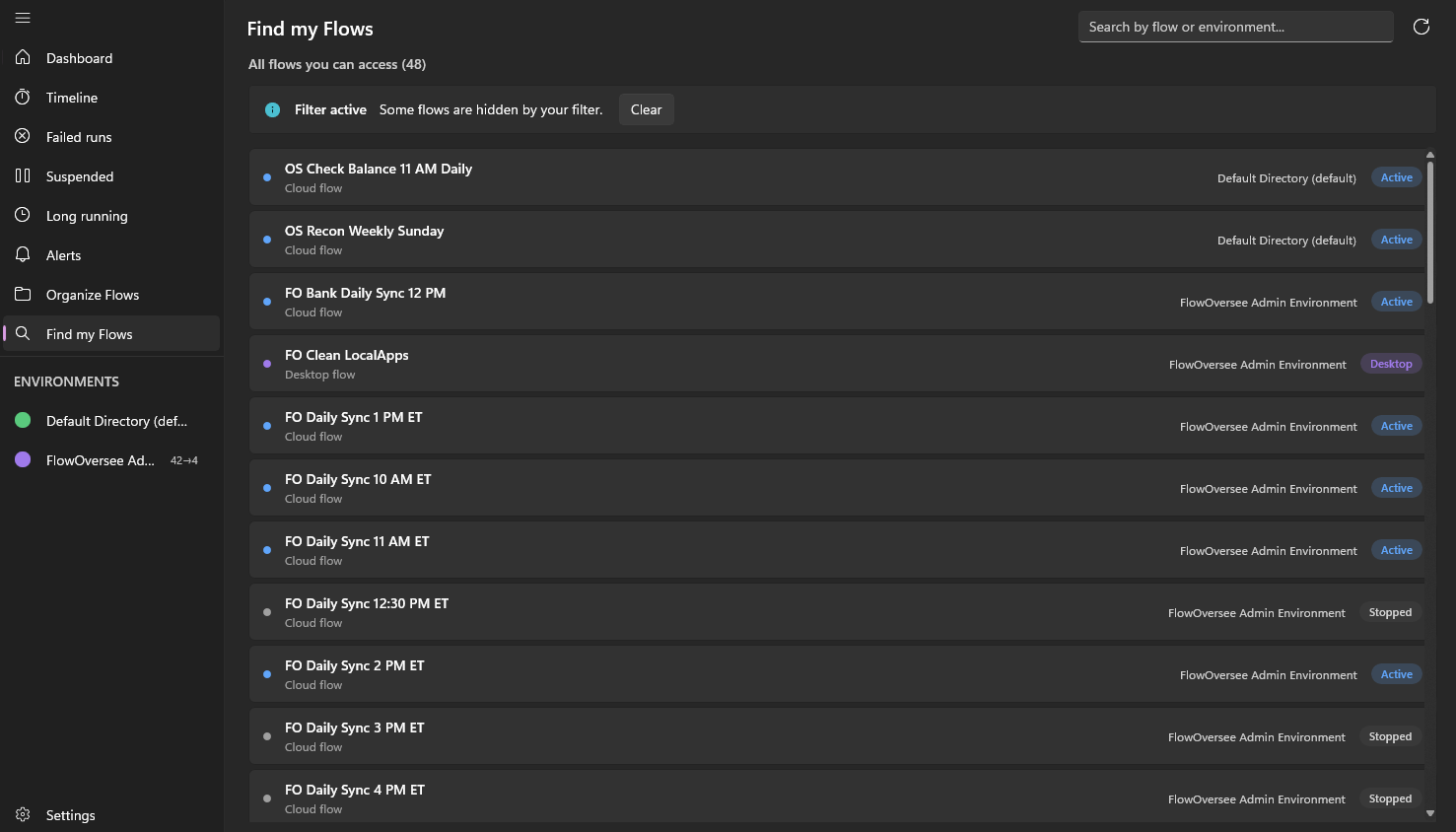
Find my Flows

One searchable list of every flow you can access, across every environment — search by flow or environment, with each flow's state at a glance.

Learn more →

Organize with folders

Group flows into your own folders — nested as deep as you like, per environment — so the things you care about stay together.

Learn more →

Timeline & history

Switch viewing modes: a live 24-hour view of current runs, replay a prior date, jump to today, or look ahead to scheduled future runs.

Learn more →

Multiple environments

Switch between every environment your account can reach, each with its own folder layout.

Search & filter

Find any flow in the current environment by name or creator, then filter by status down to exactly what you need.

Live on every load

Flow statuses, counts, and run times are never cached — every screen reads them live.

Export your flow inventory

Download every flow in an environment — name, ID, type, schedule pattern, source time zone — as CSV or JSON. The same file uploads straight into the Daily Monitor.

Learn more →

Long-running monitor

Spot runs that are stuck. Set your own “too long” threshold and FlowOversee surfaces anything still running past it.

Learn more →

Triage the findings

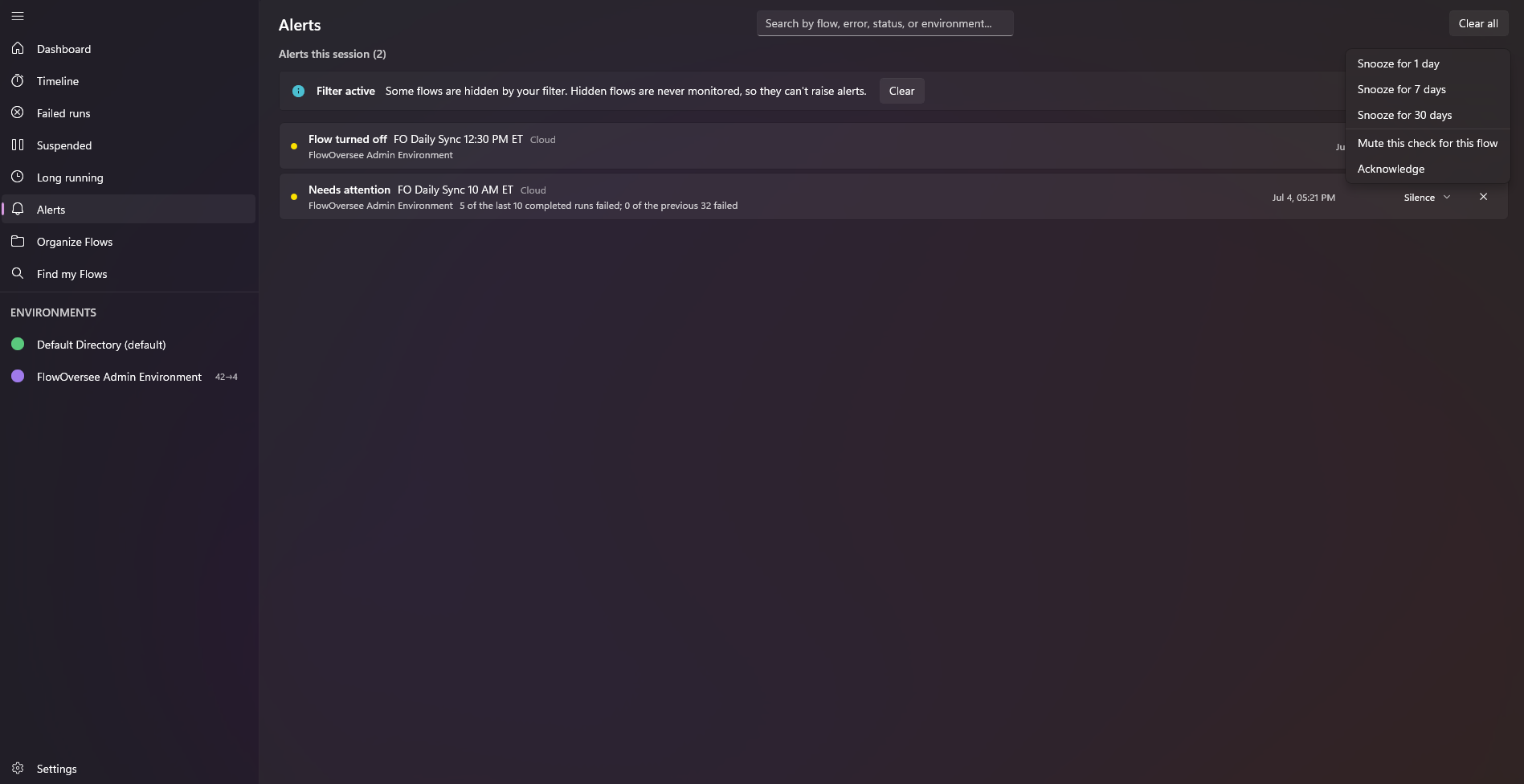
Snooze, mute, or acknowledge any “Needs attention” finding — and choose which of the five checks run, and how sensitive they are.

Learn more →

Watch only what matters

An include / exclude flow filter scopes FlowOversee to the flows you choose — and it applies everywhere, alerts included.

Themes & display options

Light, dark, or follow your Windows theme. A 12- or 24-hour clock, and every time shown in the timezone you choose.

Read-only by design

Delegated, read-only permissions: FlowOversee can watch your flows but can never run, change, or delete them.

Lock it behind Windows Hello

Optional: require your face, fingerprint, or PIN to open the app — plus a one-key lock (Ctrl+L) when you step away.

Private by design

Everything runs on your machine. No analytics, no telemetry, no back-end, nothing phoned home.

A closer look

Built for the way you check flows

From a single flow's details to the full run timeline — live, replayed, or scheduled ahead — plus finding any flow across your environments and staying ahead of failures.

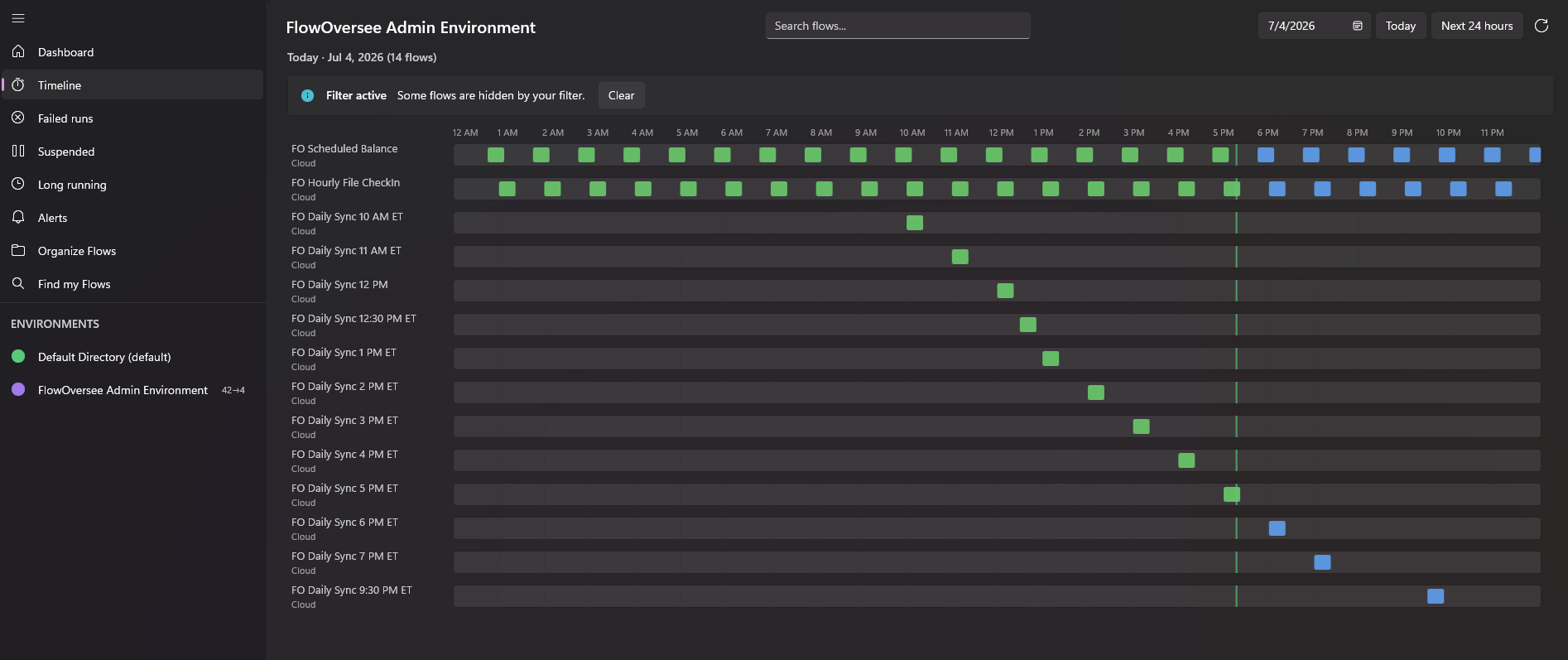
Timeline — Live 24h
FlowOversee timeline showing a live rolling 24-hour view of flow runs
Add screenshotimages/timeline-live.png

Live 24-hour view

A rolling 24-hour window from the current hour forward — what's running right now and what's scheduled to run next, updating live as runs start and finish.

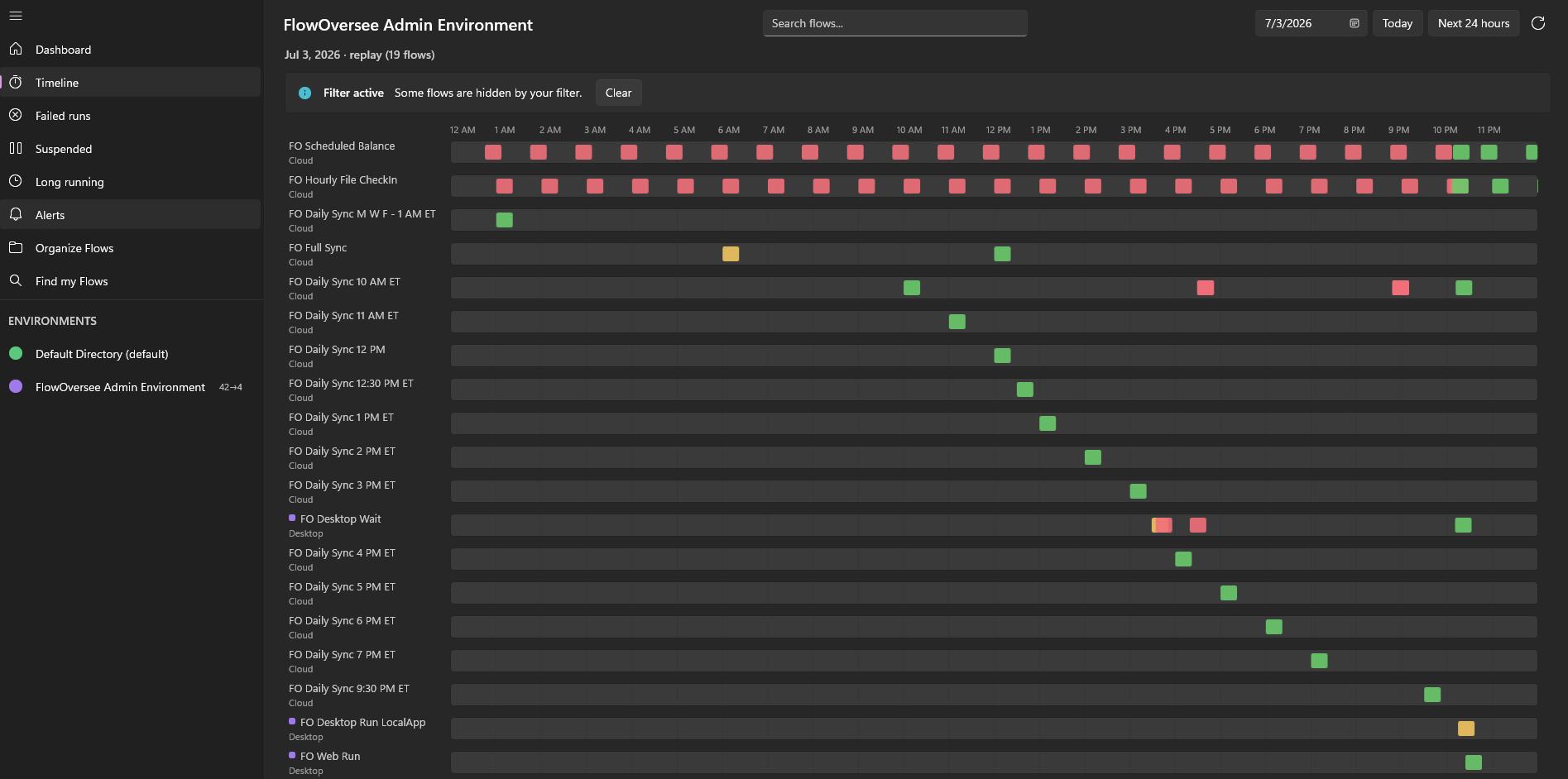
Timeline — Replay
FlowOversee timeline replaying flow runs from a prior date
Add screenshotimages/timeline-replay.png

Replay a prior date

Step back to any past day and replay exactly what ran, when — to pin down when a flow started failing.

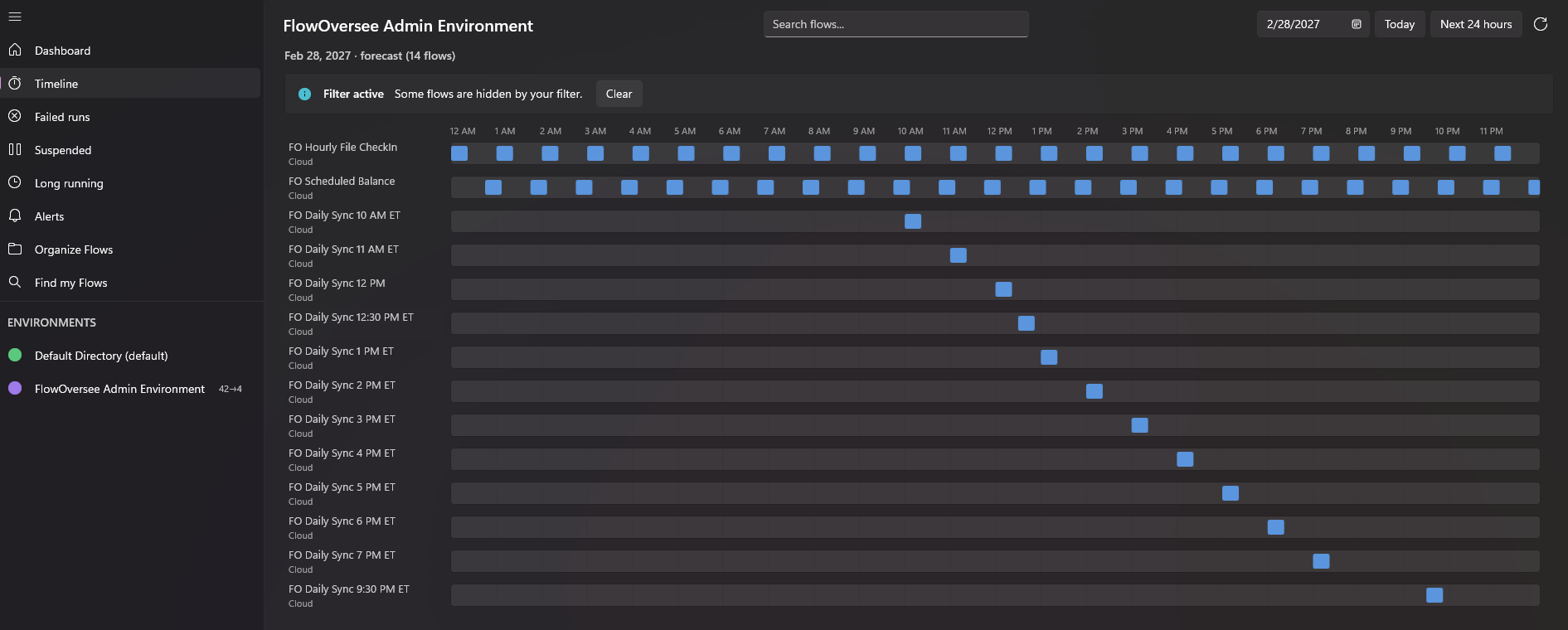
Timeline — Scheduled ahead
FlowOversee timeline showing upcoming scheduled flow runs in a future view
Add screenshotimages/timeline-future.png

Look ahead

See upcoming scheduled runs on a future date, so you know what's coming before it does.

FlowOversee — Find my Flows
FlowOversee Find my Flows page listing every flow across all environments in one searchable list
Add screenshotimages/find-flows.png

Find my Flows

Every flow you can reach, across every environment, in one searchable list — search by flow or environment and open any one.

FlowOversee — Alerts
FlowOversee Alerts page listing flagged failures, suspensions, and anomalies with a sidebar badge
Add screenshotimages/alerts.png

The Alerts page

Everything the background monitor has flagged — failures, suspensions, and anomalies — collected in one place, with a sidebar badge.

FlowOversee — Settings
FlowOversee alert settings showing monitored environments, triggers, and check interval
Add screenshotimages/settings-alerts.png

Alerts, your way

Pick the environments to watch, the triggers that matter, and how often to check — all off until you turn it on.

The story

Born from years of Power Automate

FlowOversee grew out of years of hands-on Power Automate work and a simple wish: one place to oversee every flow — cloud and desktop together. Failures, suspensions, and long-running runs at a glance, plus a timeline of what ran yesterday, what's running this morning, and what's scheduled for tonight, tomorrow, or a specific day next month.

That's why it's built local-first. Everything runs on your own machine, your data stays with you, and it talks only to Microsoft's own services, on your behalf. The goal is simple: something any Power Automate user can pick up to stay on top of their flows. That's FlowOversee.

Common questions

Power Automate monitoring, answered

How do I get notified when a Power Automate flow fails?
Turn on FlowOversee's optional background alerts and leave the app open — even minimized. It watches the environments you choose on the interval you choose (every 2 minutes up to hourly), and sends a Windows notification when a check finds a failed run, a suspended or turned-off flow, or something that needs attention. Every alert also lands on the in-app Alerts page. It's all off by default, one switch away.
Can I monitor desktop flows (Power Automate for desktop) too?
Yes. FlowOversee shows Power Automate cloud flows and desktop flows side by side — the dashboard, timeline, and Daily Monitor all cover both kinds.
How do I know whether a scheduled flow actually ran today?
The Daily Monitor turns "I think the jobs ran" into a checked list. Pick the flows that matter and each day FlowOversee marks every one off against its actual run history — completed, failed, still pending, or never ran. It knows each flow's schedule and expected time (with a grace window), and flags flows that are turned off so nobody waits on a job that can't run.
Can I organize Power Automate flows into folders?
Yes — FlowOversee adds folders on top of Power Automate: as many as you need, nested as deep as you like, per environment. They're a local view on your machine, so nothing changes in Power Automate — and every folder still shows live flow states with one click to details or the maker portal.
How do I catch flows that are running too long?
The Long Running page lists every run currently in progress past a threshold you pick — anywhere from 5 minutes to 1 day — plus a "Ran long recently" section of finished runs that went over, grouped per flow. Needs-attention checks also flag duration spikes against each flow's own baseline, automatically.
Can I see what flows will run tomorrow — or on a specific date?
Yes. The Timeline lays runs out across a 24-hour day: live for right now, replayed for any past date, or projected ahead for any future date — so you can check what fires on the holiday Monday or during Saturday's maintenance window before it happens.
How do I find a flow when I don't know which environment it's in?
Find my Flows searches every environment you can access on the tenant and lists every flow in one searchable list — search by flow or environment name, see each flow's state, and open it from the results.
Does FlowOversee send my data anywhere?
No. FlowOversee is local-first: it runs entirely on your machine and talks only to Microsoft's own endpoints, using your own credentials, to read your own flows. There's no server, no account system, no telemetry, and nothing phoned home.
Can FlowOversee change, run, or delete my flows?
No. FlowOversee uses delegated, read-only permissions — it can watch your flows but can never run, change, or delete them.
What do I need to use FlowOversee?
Windows 11 or Windows 10 (version 1809 or later, x64 or ARM64) and a Microsoft work or school account with access to Power Automate. A first-run wizard walks you through setup, and the Help & Setup Guide covers every step.
Now available

Get FlowOversee on the Microsoft Store

FlowOversee is available now. Install it from the Microsoft Store.

Get FlowOversee from the Microsoft Store

Requires Windows 11 or Windows 10 (version 1809 or later), x64 or ARM64. Best on displays 1280×800 or larger; the window works down to 760×520.