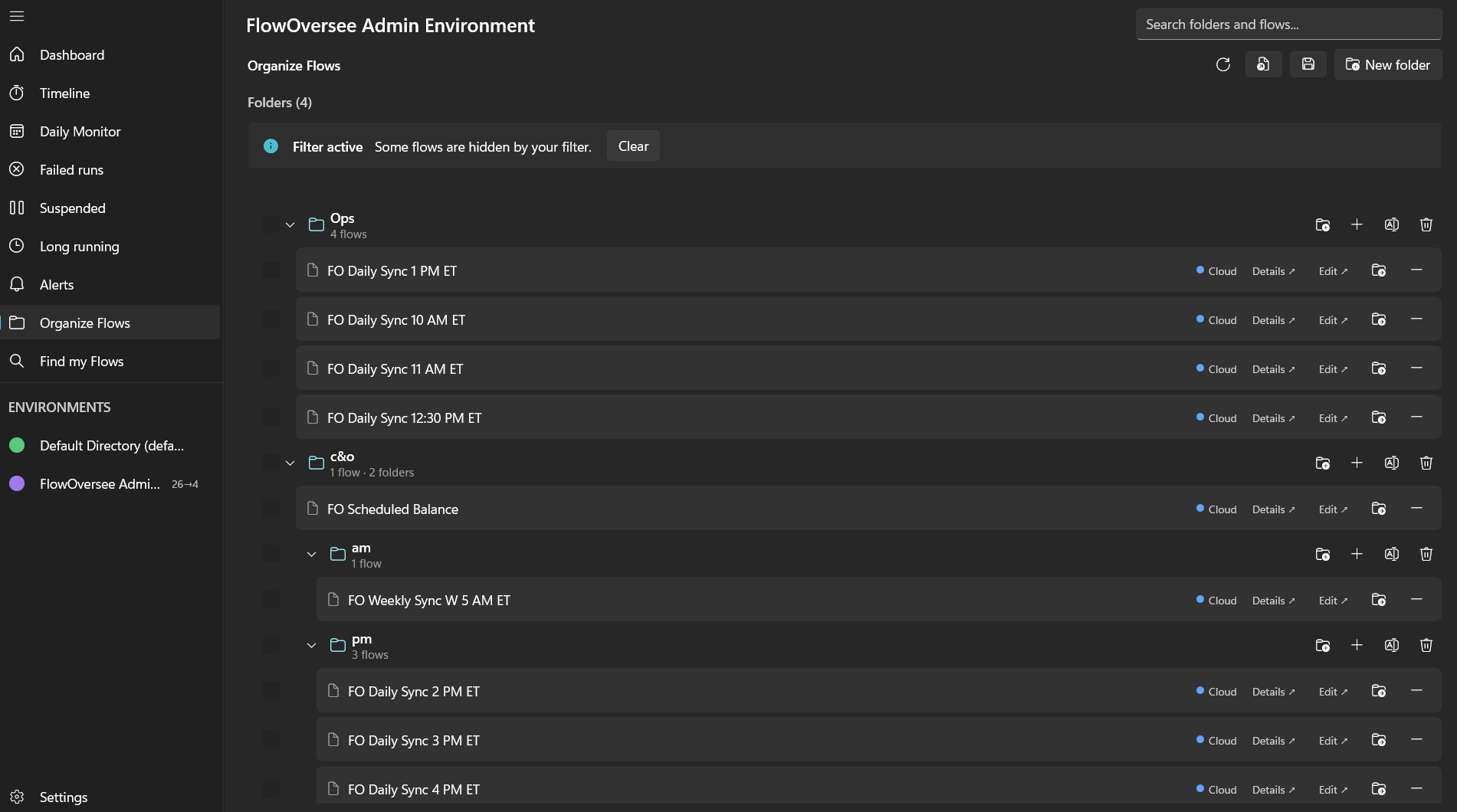
Folders

Your flows, your folders

Environments fill up fast — fifty flows becomes one long list. FlowOversee lets you organize every environment's flows into folders that make sense to you: nested as deep as you like, as many as you need, with live status inside each one. And it changes nothing in Power Automate.

Power Automate does the automating — FlowOversee adds the overseeing. It's a read-only companion to a platform we think is great: nothing in your flows changes, you just see them better.

One list, many flows

  • Flows live in a single list per environment — a structure of your own isn't part of the picture.
  • Teams fall back to naming conventions — "OPS_", "HR_", "zz_old_" — and hope everyone follows them.
  • Related flows — the morning chain, the month-end set — sit scattered alphabetically.

With FlowOversee

  • Folders and sub-folders, as many and as deep as you need — per environment.
  • Fill them fast: a picker lists the environment's flows, you tick, they're in.
  • Entirely local and read-only — your structure lives on your machine, Power Automate is untouched.

Structure that matches how you think

Morning jobs in one folder, month-end in another, each department under its own branch — whatever the shape of your work is, the tree can take it. Search spans folders and the flows inside them.

  • Nested sub-folders, no depth limit to fight with
  • Each flow lives in one folder — Move relocates it, multi-select moves groups, merge combines folders
  • Every environment keeps its own tree
  • Morning jobs6 flows
  • FO Daily Sync 12 PM
  • FO Site Refresh 9:30 AM
  • Exports3 flows
  • FO Nightly Export
  • Month-end4 flows
  • Desktop automations5 flows

Folders that tell the truth

These aren't bookmarks that rot. Every folder resolves its flows against live data each time you look — states, kinds, and names stay current, and anything that no longer exists says so.

  • Live state and a cloud/desktop kind badge on every flow in the tree
  • Renamed flows stay in sync; deleted flows are flagged as missing
  • From any folder: open details, run history, or jump to the flow in the maker portal
FO Daily Sync 12 PM
Cloud · Active · Morning jobs
Details
FO Site Refresh 9:30 AM
Cloud · failed last run · Morning jobs
Open in portal ↗
FO Retired Import
No longer found in this environment
Missing
Common questions

Folders, answered

Can I organize Power Automate flows into folders?
The portal keeps flows in a single list per environment — and FlowOversee adds folders on top: create as many as you need, nest them as deep as you like, and arrange each environment's flows the way your team actually thinks about them. Morning jobs, month-end, per-department — whatever structure fits.
Do FlowOversee folders change anything in Power Automate?
No. Folders are a local view that lives on your machine — FlowOversee stays fully read-only toward Power Automate. Your flows, environments, and permissions are untouched; you're organizing your view of them, not the flows themselves.
Can folders be nested, and can a flow be in two folders?
Folders nest as deep as you like — sub-folders inside sub-folders are fine. Each flow lives in exactly one folder at a time, which keeps the structure honest; a Move command relocates it, and you can select multiple flows to move together or merge whole folders.
What happens when a flow in a folder is renamed or deleted?
Folders resolve against live data: renamed flows keep themselves in sync, each entry shows its current state and kind, and a flow that no longer exists is flagged as missing instead of silently lingering. What you see in a folder is what exists right now.
Works together

Pairs well with

Coming soon

Fifty flows, finally filed

FlowOversee is coming to the Microsoft Store. Try folders in the interactive demo right now — no install, no sign-in, simulated data.