Dashboard

All your flows. One dashboard. One glance.

The Power Automate portal is where you build your flows. FlowOversee is where you watch them run: it opens to the whole environment at once, sorted and counted by status — what's running now, what failed, what was cancelled — with the full list loaded up front.

FlowOversee — Dashboard
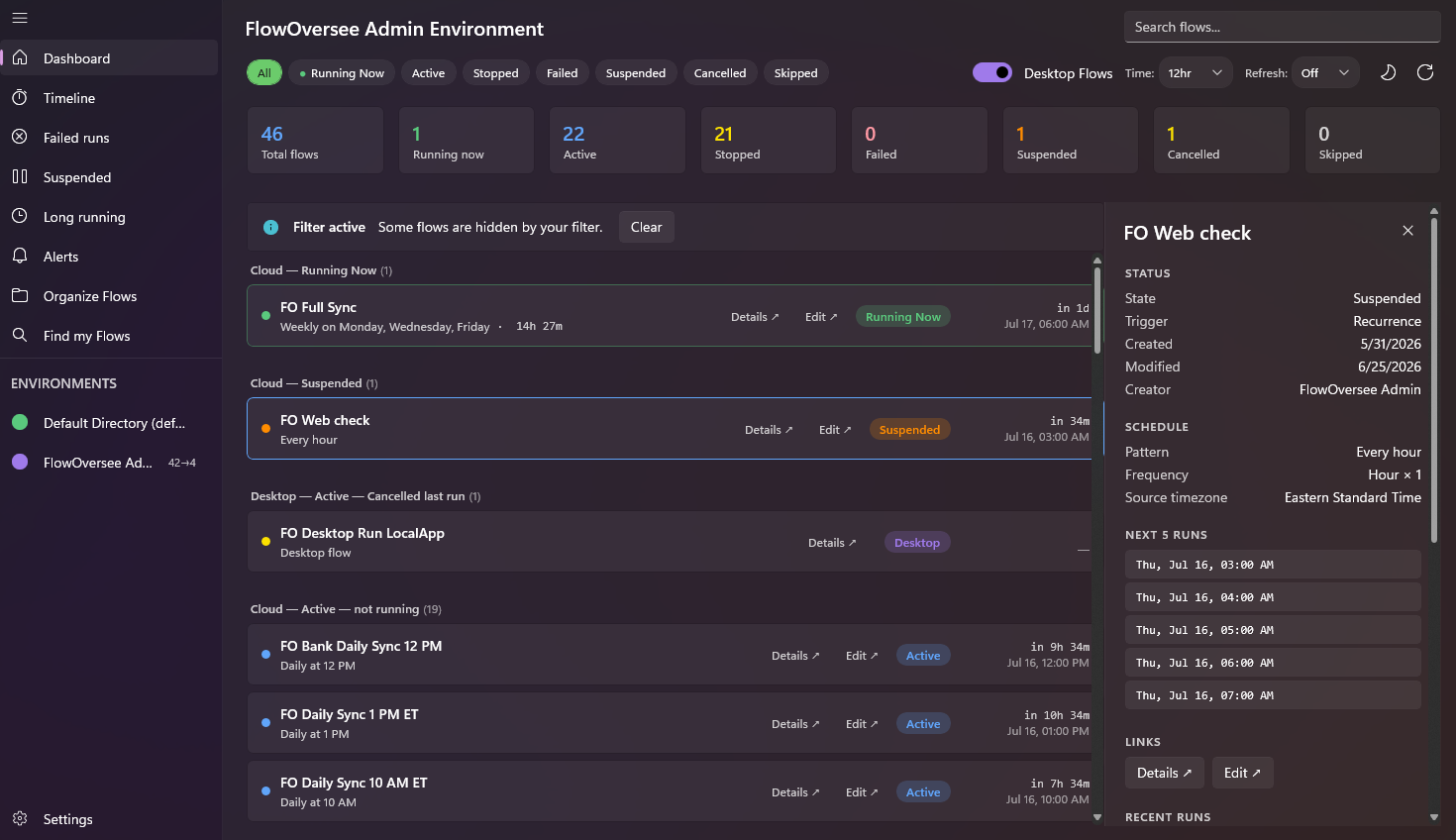
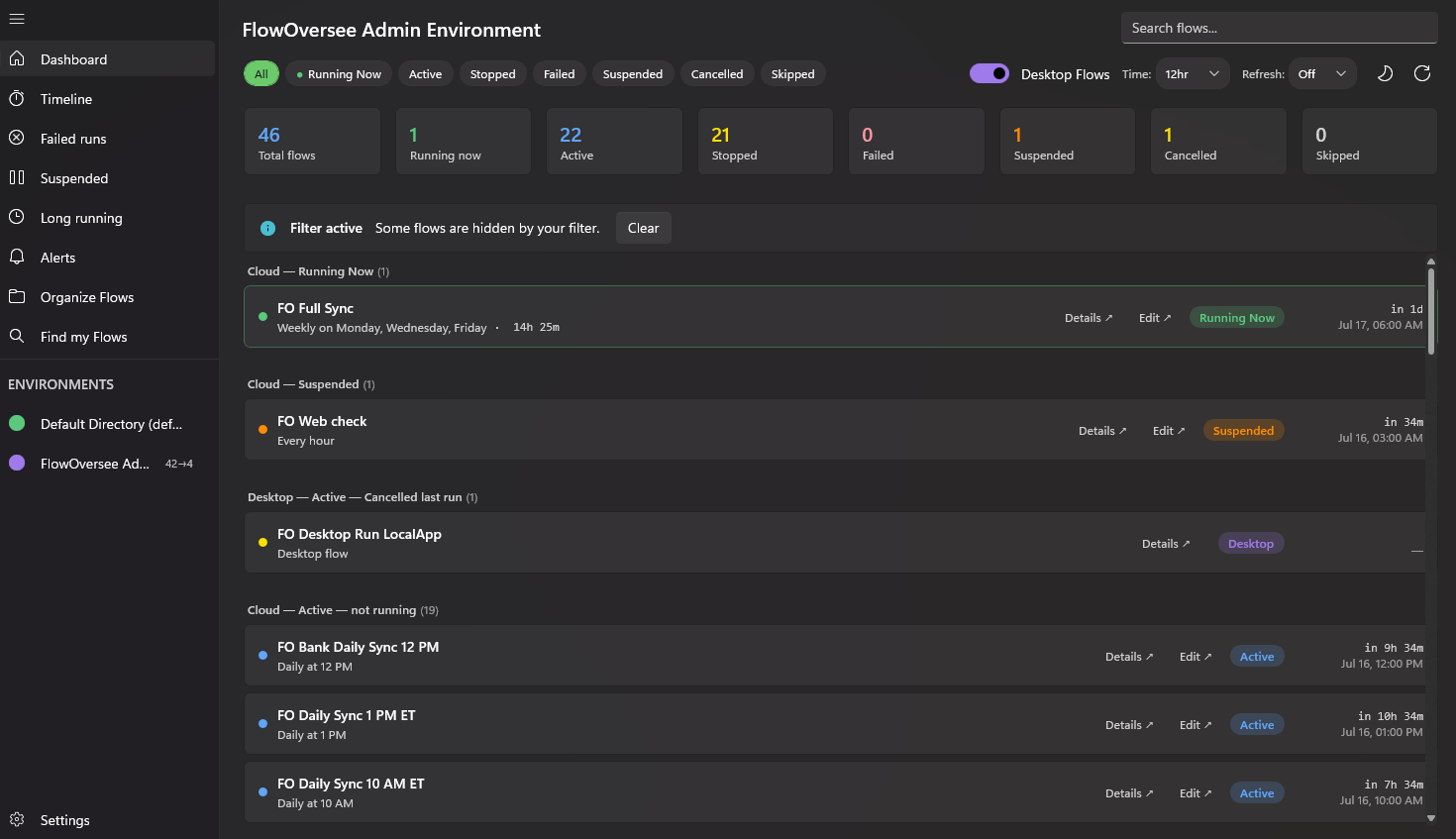
FlowOversee dashboard showing every Power Automate cloud and desktop flow grouped and counted by status

The dashboard: every flow in the environment, counted by status, searchable, filterable — live.

Power Automate does the automating — FlowOversee adds the overseeing. It's a read-only companion to a platform we think is great: nothing in your flows changes, you just see them better.

Checking flows by hand

  • The portal's flow list loads a page at a time — pulling up the full list takes a few rounds of "Load more".
  • The list is built for building, not monitoring — last-run outcomes take a click into each flow.
  • Cloud flows and desktop flows live on separate pages.

With FlowOversee

  • The full environment loads up front — running, active, stopped, failed, suspended, cancelled, skipped — sorted and counted.
  • Last-run outcomes are the organizing principle: failed and cancelled flows are groups, not surprises.
  • Cloud and desktop flows side by side, in every environment your account can reach.

Counted and sorted the moment it loads

Status cards across the top give you the day's shape in a second — then filter by any status or search by name or creator to get to the exact flows you mean.

  • Live counts for the environment you're viewing — running now, failed, cancelled, and more
  • Filter by status, search by name — plus an include/exclude flow filter that scopes the whole app
  • Optional auto-refresh on a preset interval, or refresh by hand — and never a cached number either way
48
Total flows
2
Running now
39
Active
4
Stopped
2
Failed
1
Cancelled

Open the details without leaving

Any flow, one click: run history, current status, schedule, and error details in a single panel. When it's time to edit the flow itself, jump straight to it in the maker portal.

  • Run history with outcomes and durations, right in the app
  • Schedule and trigger information at a glance
  • One click to the flow in the Power Automate portal
FlowOversee — Flow details
FlowOversee details panel showing a flow's run history, schedule, and error details

Take the inventory with you

One click exports every flow in the environment — name, ID, type, schedule pattern, source time zone — as CSV or JSON. It's documentation, an audit answer, and a starting point all at once.

  • CSV for spreadsheets, JSON for tooling
  • The export doubles as the Daily Monitor import template — export, trim, upload
  • Schedule pattern and source time zone included per flow
flows-admin-environment.csv
48 flows · name, ID, type, schedule, time zone
CSV
flows-admin-environment.json
Same inventory, structured
JSON
Upload to Daily Monitor
The export format is the import format
Ready
Common questions

The dashboard, answered

How do I see all my Power Automate flows in one place?
FlowOversee's dashboard loads every flow in the environment — cloud and desktop — sorted and counted by status the moment the app opens: the full picture up front, with live counts for running, active, stopped, failed, and cancelled flows. For a single list across every environment on your tenant, Find my Flows does that too.
Can I see which flows are running right now?
Yes — a running-now count sits at the top of the dashboard, and you can filter the list to just the flows currently running. The Timeline shows the same runs laid out across the day, and the Long Running page flags any that have been going too long.
Is the dashboard data live or cached?
Live, always. FlowOversee deliberately never caches flow lists, statuses, or run times — every screen reads fresh data on every load, and you can add an automatic refresh on a preset interval on top. What you see is what Power Automate says right now.
Can I export a list of my Power Automate flows?
Yes. The dashboard exports the environment's full flow inventory — name, ID, type, schedule pattern, source time zone — as CSV or JSON. The same file uploads straight into the Daily Monitor as a checklist template.
Works together

Pairs well with

Coming soon

The whole environment, one glance

FlowOversee is coming to the Microsoft Store. Try the dashboard in the interactive demo right now — no install, no sign-in, simulated data.