Where the portal shows scheduled flows
- My flows. In the Power Automate portal, the cloud flows list marks each flow's type — scheduled, automated, or instant — which is the quickest way to pick out the scheduled ones you own. The schedule itself lives on the Recurrence trigger inside the editor, one flow at a time.
- Shared with me. Flows other makers have shared with your account, with the same type marking. A flow shared with you as a co-owner shows its run history; run-only sharing does not.
- Solutions. Flows stored in solutions are listed per solution under Solutions, with no view across all solutions at once.
- The admin center. For administrators, the Power Platform admin center lists an environment's cloud flows under its resources — a management view rather than a schedule view, but the one place that is not scoped to a single maker.
Which flows an account can see at all
Before the lists, the boundary. Flow lists are personal: an account sees the cloud flows it created and the cloud flows shared with it, and nothing else — a solution flow that nobody shared does not appear for an account that did not create it, whatever roles that account holds. FlowOversee reads flow data as the signed-in account, so it draws the same boundary the portal does. If the goal is one account seeing every scheduled flow in the environment, the fix is sharing each flow with that account (a security group works, so one share per flow can cover a team) or signing in as the account that owns them. The companion guide on why a flow does not appear walks through it step by step.
What FlowOversee adds: one list, with every next run
The Dashboard loads every flow the signed-in account can see in the environment — cloud and desktop, owned and shared, solution or not — into one searchable list, counted by state the moment the app opens. Each scheduled flow shows its next run as a countdown and a timestamp in the time zone you choose; flows that are not scheduled show a dash, so the scheduled ones sort themselves out by eye. Select a flow and its details pane spells out the schedule pattern and lists the upcoming runs. Nothing is opened in the editor, and nothing in Power Automate changes.
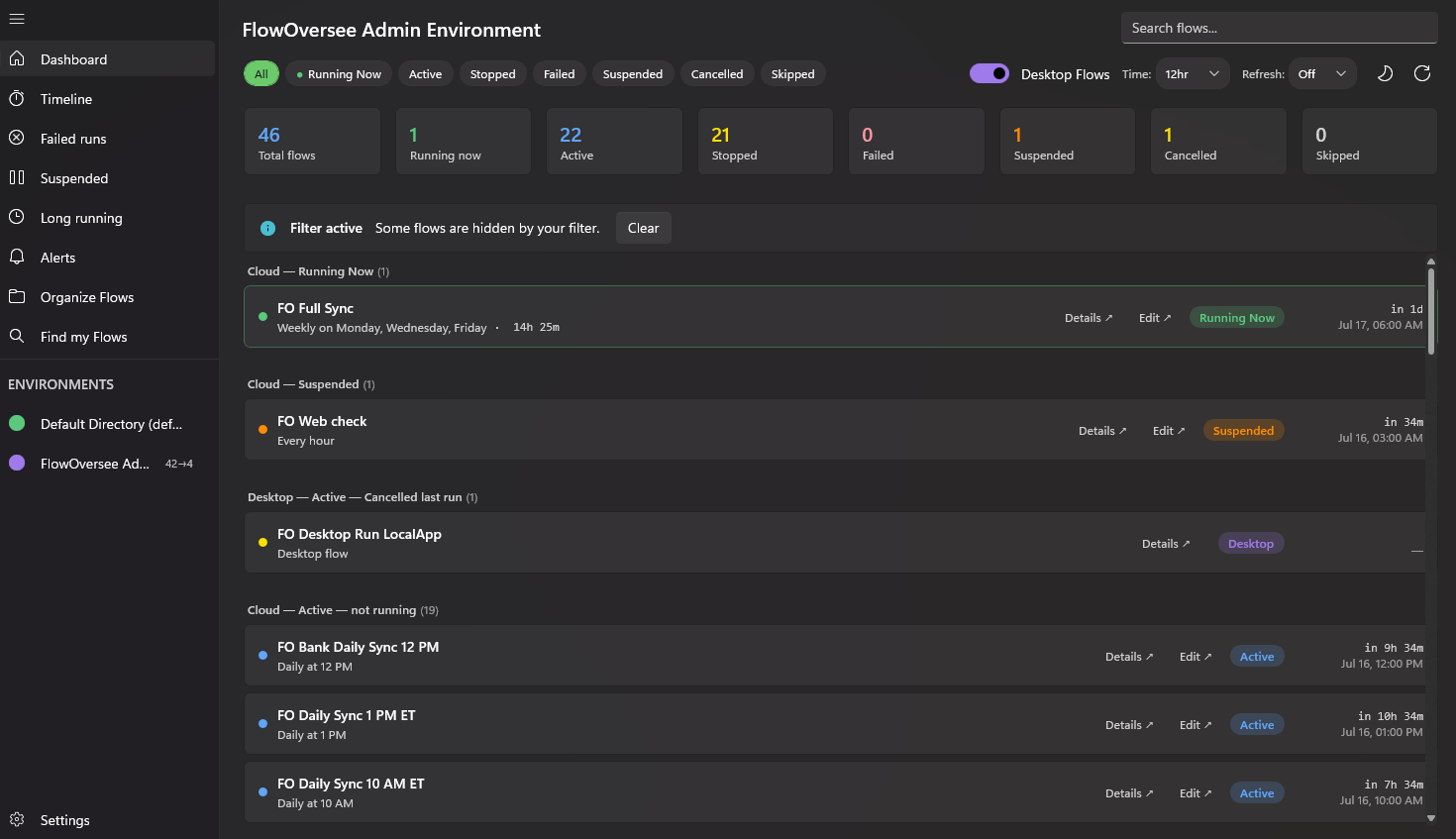
The Dashboard: every flow the account can see in the environment, with the next run beside each scheduled one.
The Timeline shows the same scheduled flows as lanes on a 24-hour strip — today, the next 24 hours, or any date you pick — so the environment's schedule reads as one picture. And when the question is "which environment is that scheduled flow even in," Find my Flows lists every flow the account can access across every environment on the tenant in one search box.
Exporting the list
One click on the dashboard exports the environment's flow inventory as CSV or JSON: flow name, ID, type, state, trigger, schedule pattern, frequency, interval, start time, source time zone, and the schedule's hour, minute, weekday, and month-day constraints. It is documentation, an audit answer, and a starting point at once — and the export is also the Daily Monitor's import template, so "every scheduled flow" can become "every scheduled flow, checked off daily" by trimming the file and uploading it.
Why some flows still will not appear
- The account cannot see them. Not created by the account and not shared with it — share the flow, or sign in as its owner.
- The environment has no Dataverse database. The environment list FlowOversee reads includes only Dataverse-backed environments; an administrator can add the database from the environment's page in the admin center. See why an environment does not appear.
- A flow filter is active. FlowOversee can include or exclude flows by name pattern; every affected page shows a "Filter active" banner with a one-click Clear.
- It is a desktop flow. Desktop flows appear only in environments with a Dataverse database, only while the Desktop Flows toggle is on, and only once the flow has been published. Their schedules belong to the cloud flows that call them.
A note on scope: this guide is one point of view — behavior observed on a single, uncustomized environment and tenant — and it is not the authoritative reference. Portal and admin-center pages, defaults, and rollout behavior change as Microsoft updates the platform, and custom security roles, licensing, policies, or tenant configuration can change what you see. Always defer to the official Microsoft documentation, your administrator, and your organization's own policies for the authoritative answer in your environment.