Timeline

Yesterday, right now, and next Tuesday — on one timeline

Power Automate's run history is thorough — one flow at a time. FlowOversee adds the big picture: every flow's runs as bars across a 24-hour day, live as it happens, replayed for any past date, or projected ahead for any day you pick.

Power Automate does the automating — FlowOversee adds the overseeing. It's a read-only companion to a platform we think is great: nothing in your flows changes, you just see them better.

Piecing the day together by hand

  • Run history is a per-flow table — building a picture of the day across flows is up to you.
  • Questions like "what runs during Saturday's maintenance window?" mean opening schedules one by one.
  • Reconstructing "what else ran around 2 AM?" means cross-referencing tables flow by flow.

With FlowOversee

  • Every flow is a lane; every run is a bar on the day's 24-hour grid — outcomes at a glance.
  • Pick any date — past for replay, today for now, future for what's scheduled.
  • Search the lanes, and your include/exclude flow filter applies here too.
Three ways to look

Live, replayed, or scheduled ahead

Same timeline, three questions: what's happening, what happened, and what's coming.
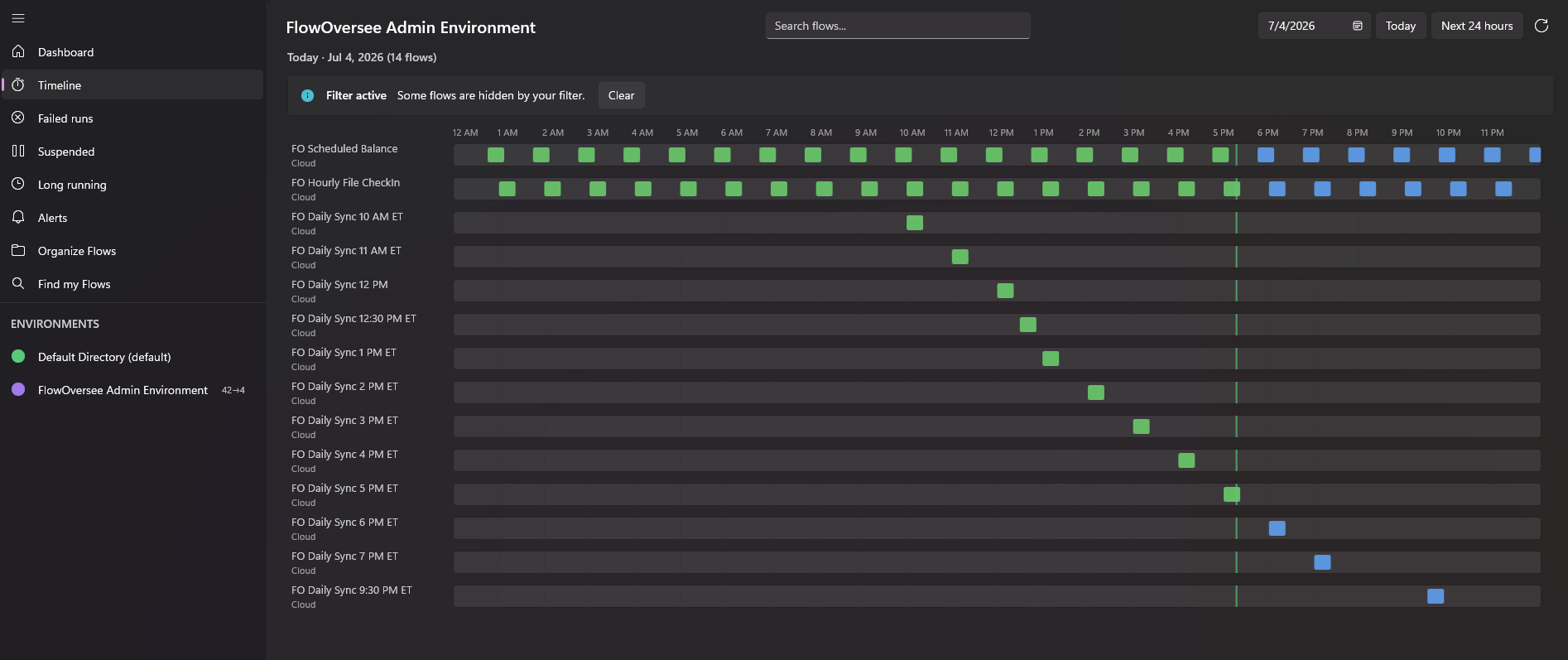
Timeline — Live 24h
FlowOversee timeline showing a live rolling 24-hour view of Power Automate flow runs

Live 24-hour view

A rolling window from the current hour forward — runs in progress and what's scheduled next, updating live as runs start and finish.
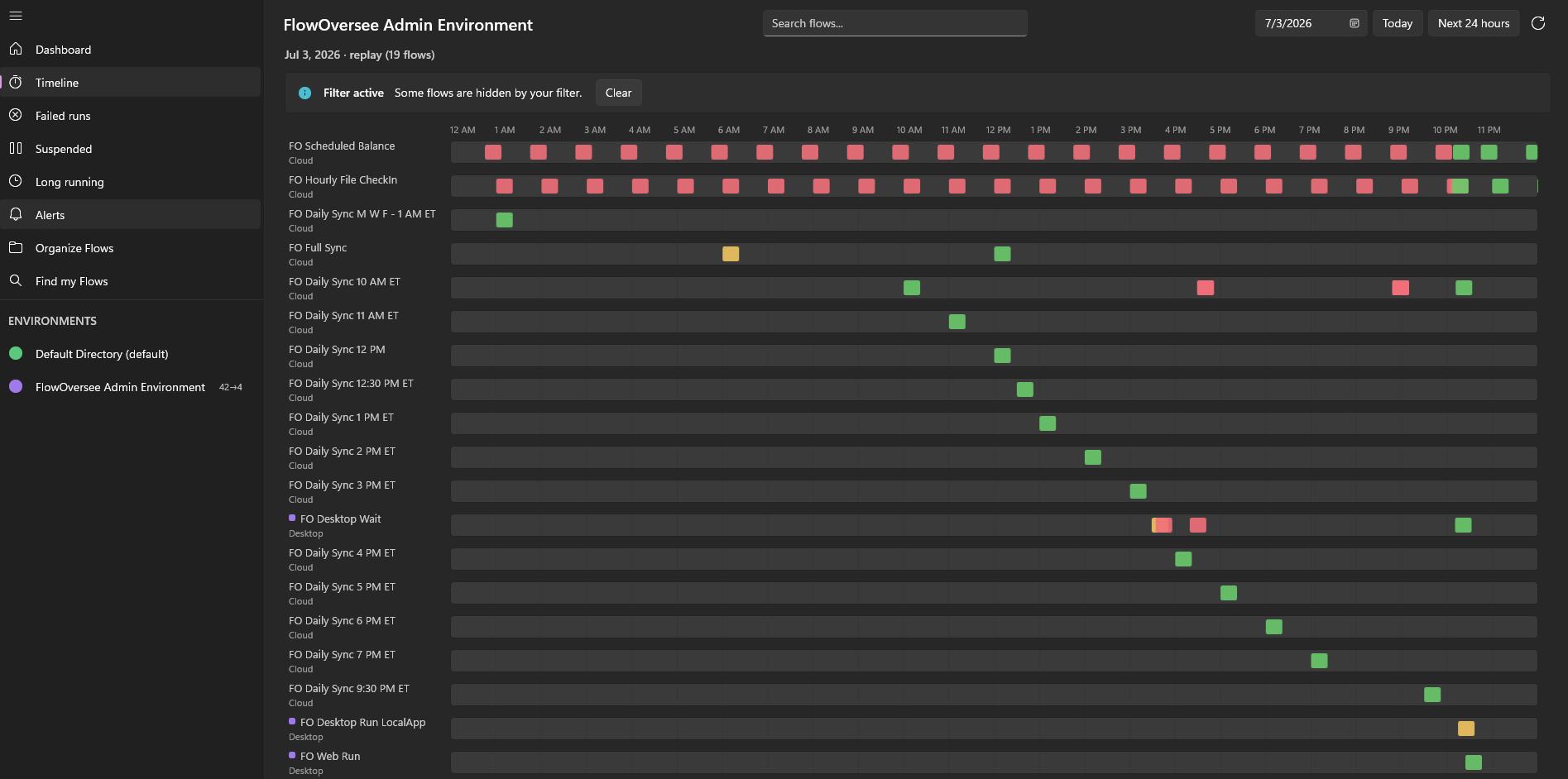
Timeline — Replay
FlowOversee timeline replaying Power Automate flow runs from a prior date

Replay any past day

Step back to any date and see exactly what ran, when, and how it ended — the fastest way to pin down when things started going wrong.
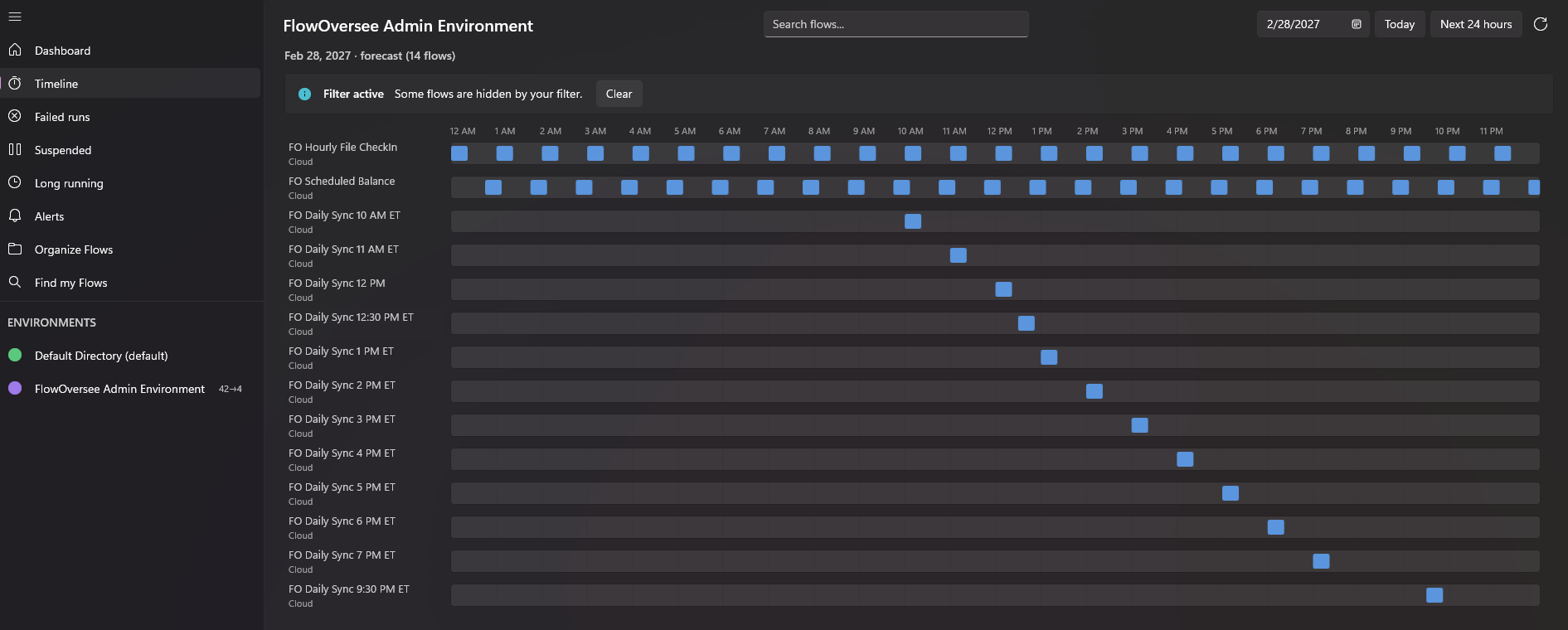
Timeline — Scheduled ahead
FlowOversee timeline showing upcoming scheduled Power Automate runs on a future date

Look ahead to any date

Planning a maintenance window? Wondering what fires on the holiday Monday? Pick the date and see what's scheduled, before it happens.

Built for the "what's still pending?" hour

Mid-morning, you want one answer: what ran, what's running, what hasn't fired yet. The timeline shows today's runs behind the now-line and today's schedule ahead of it — one picture instead of a dozen run histories.

  • Jump to today, then scan: done, in progress, still to come
  • Cloud and desktop flows share the same grid
  • Times shown in the time zone you choose, 12- or 24-hour clock
FO Daily Sync 12 PM
Ran 12:00–12:04 PM
Succeeded
FO Customer Onboarding
Running · started 1:12 PM
In progress
FO Helpdesk Digest
Scheduled 5:00 PM
Upcoming
FO Nightly Export
Scheduled 2:00 AM
Upcoming
Common questions

The timeline, answered

Can I see what Power Automate flows will run tomorrow or on a specific date?
Yes. Pick any future date on FlowOversee's timeline and it lays out the scheduled runs for that day — so you can see exactly what fires on the holiday Monday, during Saturday's maintenance window, or a specific day next month, before it happens.
Can I see what ran yesterday or last week?
Yes. Step the timeline back to any past day and replay exactly what ran and when, with each run's outcome. It's the fastest way to pin down when a flow started failing or what else was running when something went wrong.
Does the timeline show what's running right now?
Yes — the live view is a rolling 24-hour window from the current hour forward: runs in progress, what's scheduled next, updating live as runs start and finish. Cloud and desktop flows both appear.
Works together

Pairs well with

Coming soon

See your day before it happens

FlowOversee is coming to the Microsoft Store. Try the timeline in the interactive demo right now — no install, no sign-in, simulated data.