The usual causes, and where to look
- Check the flow's state. Open the flow in the Power Automate portal — its details page shows whether it is On. A turned-off flow does not run and does not record anything; flows can be turned off manually or by the platform.
- Look for a suspension notice. A suspended flow has been paused by the platform — for example over billing, quota, or policy — and stays paused until the cause is resolved. There is a separate guide on suspended flows.
- Read the trigger history. Trigger checks record the events a flow evaluated but skipped — with trigger conditions, "no run" often means the flow correctly decided the event was not a match.
- Check the connections. The flow's details page lists the connections it uses. A credential that has expired or lost consent needs a fresh sign-in before the flow can work again.
What FlowOversee adds: the miss gets flagged
The tricky thing about a flow that did not run is that nothing announces it — there is no failure, just an absence. FlowOversee is built around making that absence visible. The Daily Monitor marks each chosen flow against its actual run history every day, so a scheduled job with no matching run is flagged as a miss instead of blending in. The dashboard counts stopped and suspended flows the moment the app opens, so a state change stands out. And the optional needs-attention checks learn each flow's own rhythm and can flag "runs expected" — a flow that normally runs by now, with nothing in the history.
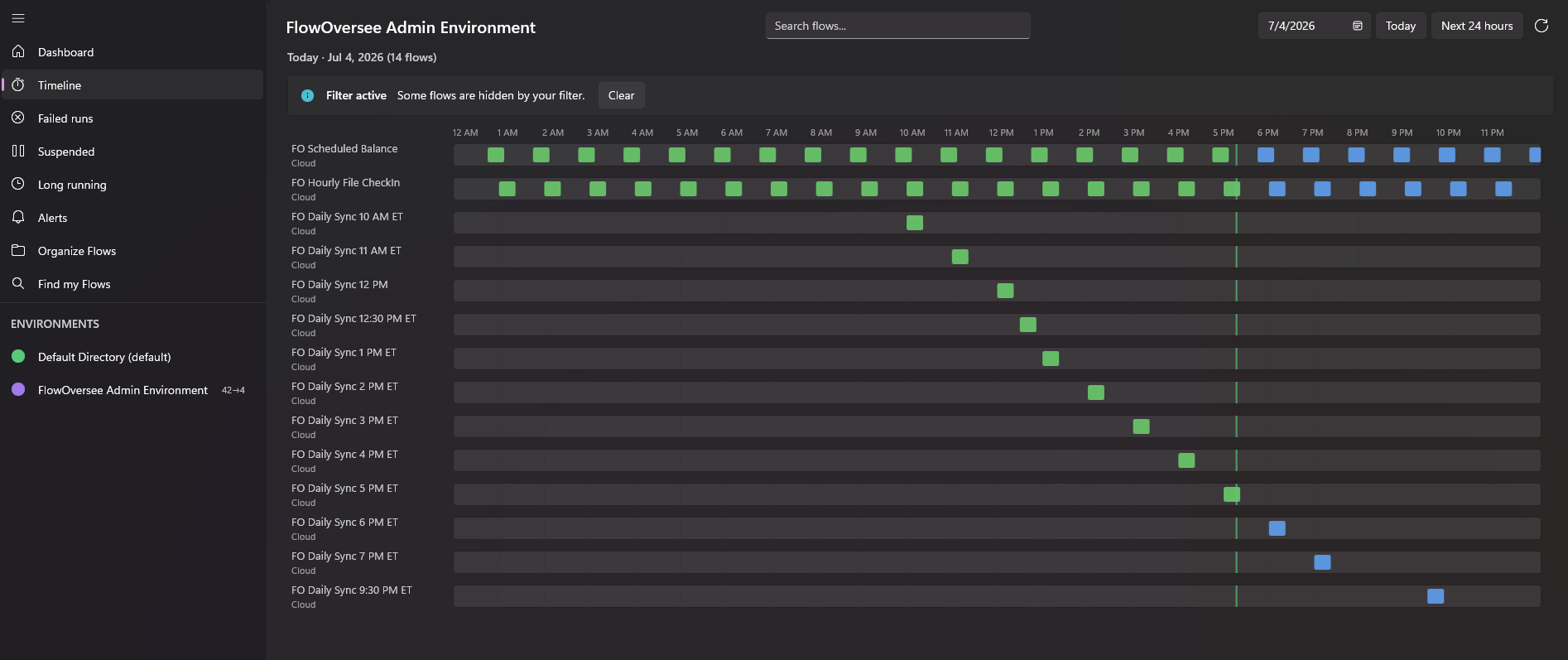
The Timeline's next-24-hours view: what is scheduled to run and when — so you know what to expect before it is due.
The Timeline rounds it out by showing the other direction: the next 24 hours of scheduled runs, so you know what should happen today — and the Today view fills in behind the clock line as runs actually land. Start with the Daily Monitor feature page, or watch a miss get caught in the interactive demo.