Check one flow's run history
When you want to know whether a specific flow ran, its own run history is the source of truth:
- Open the flow's run history in the Power Automate portal. Every cloud flow keeps one — by default the last 28 days, though admins can adjust how long run records are retained — each run with its status, start time, and duration.
- Open an individual run to see exactly what each step did — the fastest route from "did it run" to "what happened."
- Use the Activity view for the wider net: recent run activity across your flows in one feed, which the Power Automate mobile app can mirror as push notifications.
What FlowOversee adds: the question answered daily, for every flow that matters
"Did it run?" is rarely about one flow once — it is the same handful of scheduled jobs, every morning. FlowOversee's Daily Monitor turns that routine into a checklist that fills itself in: pick the flows that matter, and each day the app marks every one off against its actual run history. A flow that ran shows a check with the run's time and status; a flow with no matching run is flagged as a miss — the quiet failure mode that is otherwise easy to overlook.
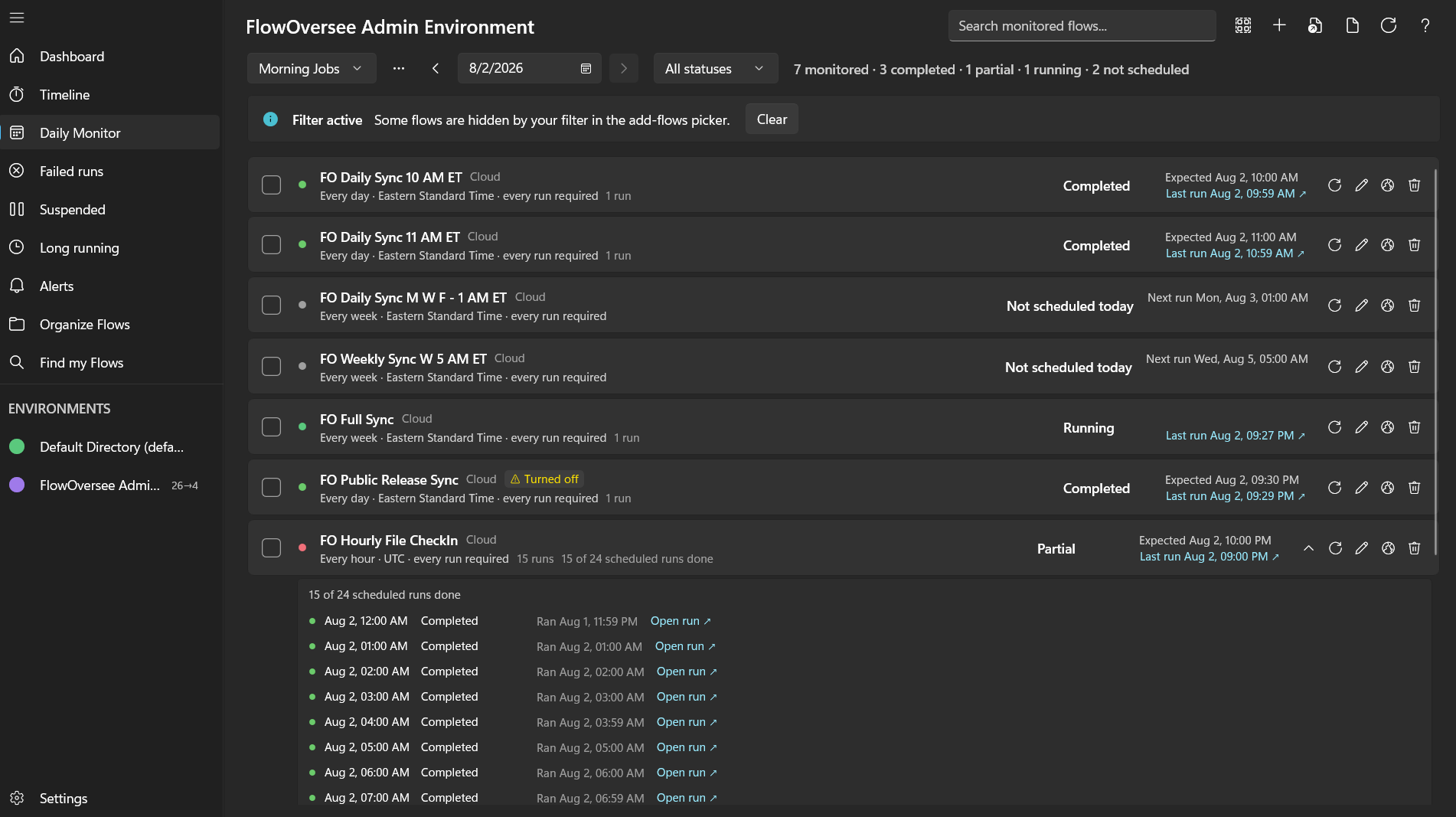
The Daily Monitor: every chosen flow checked off against its real run history, day by day.
Templates make it fit real schedules: a weekday list, a month-end list, a critical-only list — each with its own flows, grace rules for jobs that start a little off-schedule, and per-flow time-zone overrides. For the visual version of the same question, the Timeline draws the day's runs as bars on a 24-hour strip: Today shows what has run so far, and Replay shows any day still in run history.
Read more on the Daily Monitor feature page, or try both in the interactive demo — no install, no sign-in.