What Power Automate offers out of the box
If you own a cloud flow, the platform already has your back in email: Power Automate sends flow owners email notifications about failures, including repair-tips messages that describe what went wrong and suggest fixes. The Power Automate portal also shows recent run activity for your flows under Activity, and the Power Automate mobile app can deliver the same activity as push notifications on your phone.
Those notifications go to the flow's owners — so for flows you run and own, email coverage is largely automatic.
Build a notification into the flow itself
For a specific business-critical flow, many makers add an error-handling branch: an action inside the flow — send an email, post to Microsoft Teams — configured to run only when a previous step has failed. The flow then announces its own failures wherever the team lives, with exactly the context you choose to include: run details, links, mentions.
This is precise and completely under your control. It is built per flow, so it fits best on the handful of flows where a custom message earns its keep.
What FlowOversee adds: a Windows toast, for every flow at once
FlowOversee approaches the same problem from the outside. It is a Windows companion app that watches the environments you choose on an interval you choose — every 2 minutes up to hourly — and raises a Windows toast notification when a check finds a failed run. One switch covers every flow you can see in a watched environment, cloud and desktop alike, with nothing added inside any flow: FlowOversee is read-only toward Power Automate.
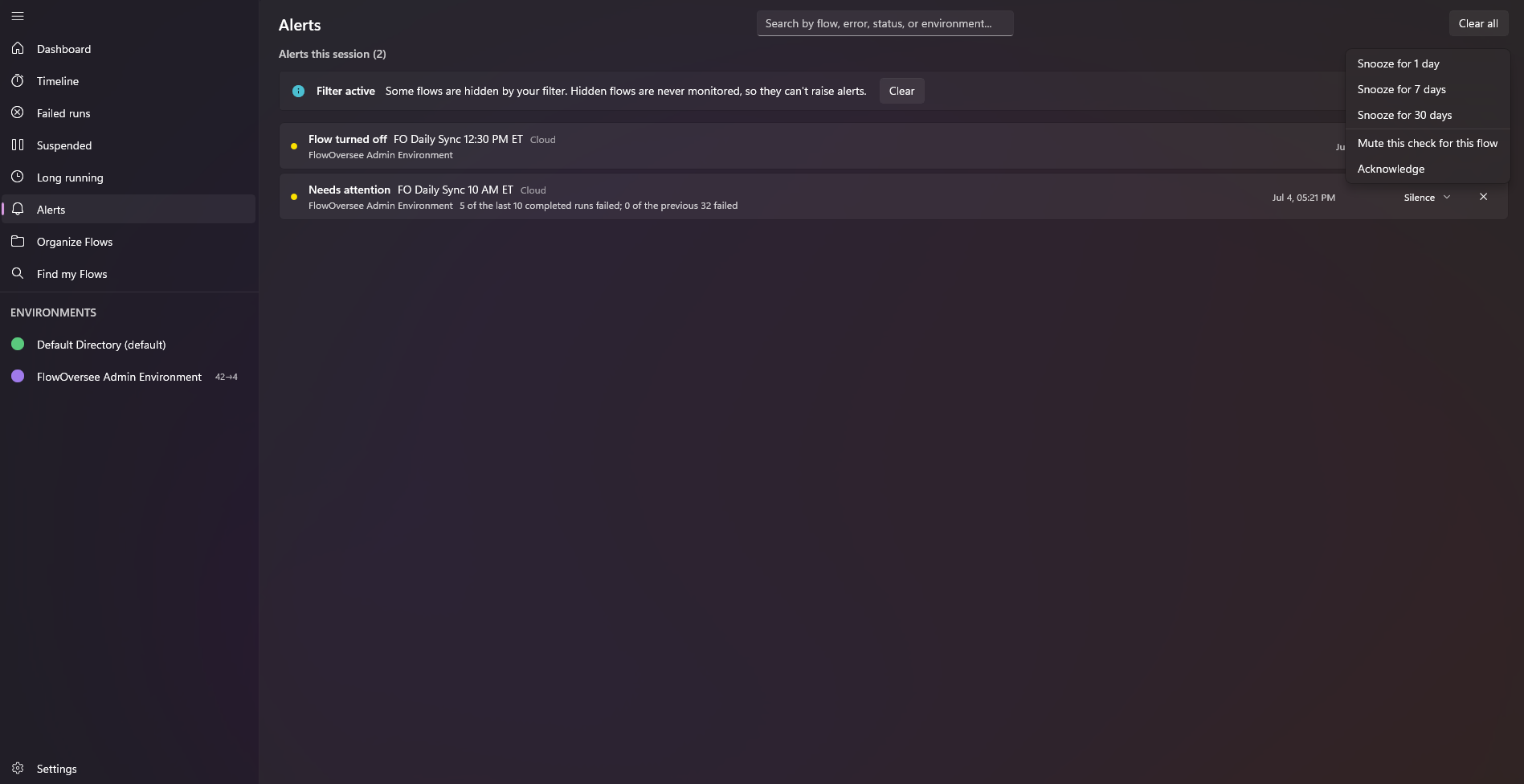
Every alert lands on the Alerts page with a sidebar badge — and as a Windows toast the moment the check finds it.
Beyond failed runs, the same checks flag a flow that gets suspended or turned off, and the optional needs-attention baseline can flag a failure streak or an unusual jump against each flow's own history. Alerts stay on the in-app Alerts page until you dismiss them, so a toast you missed overnight is still waiting in the morning. It is all opt-in and off by default — one switch in Settings turns it on, and the app just needs to be running, even minimized.
See the full picture on the Alerts feature page, or try it in the interactive demo — no install, no sign-in.