Why the portal does not show it
The Recurrence trigger stores a rule, not a timestamp: run every 1 day, at 06:00, in Eastern Standard Time, on weekdays. The platform evaluates that rule to decide when to fire. What the portal displays is the rule itself — inside the trigger, in the flow editor — and, separately, the run history of what has already happened. The next occurrence is the product of the two, and that product is what you have to work out.
Working it out from the Recurrence trigger
- Open the flow in the editor. In the Power Automate portal, open the flow and select Edit — the trigger settings are only visible from inside the editor.
- Select the Recurrence trigger. Note the Interval and Frequency, the Start time, the Time zone, and any On these days, At these hours, or At these minutes constraints under the advanced options.
- Find the last run. Back on the flow's details page, note the most recent entry in the run history.
- Count forward. Apply the interval and constraints from the last run, in the trigger's time zone, and convert to your own.
- Leave without saving. You opened a production flow in the editor to read a setting; close it without changes.
For a handful of daily flows this works. It stops being quick once schedules are weekly or biweekly, once triggers sit in more than one time zone, or once there are a few dozen flows to check — every answer means another trip into the editor and the same arithmetic again.
What FlowOversee adds: the next run, computed for you — without opening the designer
FlowOversee reads each scheduled cloud flow's Recurrence trigger through Microsoft's own APIs, as the account you signed in with and read-only, and does the arithmetic: interval, frequency, start time, constraints, and the trigger's own time zone — including runs that fall across a daylight-saving change. The result shows up in three places:
- On the dashboard, per flow. Every scheduled flow has a next-run column — a countdown such as in 32m above the actual timestamp — so the whole environment's next runs read top to bottom. Flows that are not scheduled simply show a dash.
- In the flow's details pane. Select a flow and the details pane shows its schedule pattern in plain words and a list of the upcoming runs, converted to the time zone and clock format you chose.
- On the Timeline. Every scheduled flow becomes a lane on a 24-hour strip, and every projected run a marker on it — the day's schedule as one picture rather than one flow at a time.
Nothing is opened in the designer and nothing in Power Automate changes. The one prerequisite is visibility: FlowOversee sees the flows the signed-in account created or has had shared with it, in environments that have a Dataverse database — the same boundary the portal applies, covered in the guides on environments that do not appear and flows that do not appear.
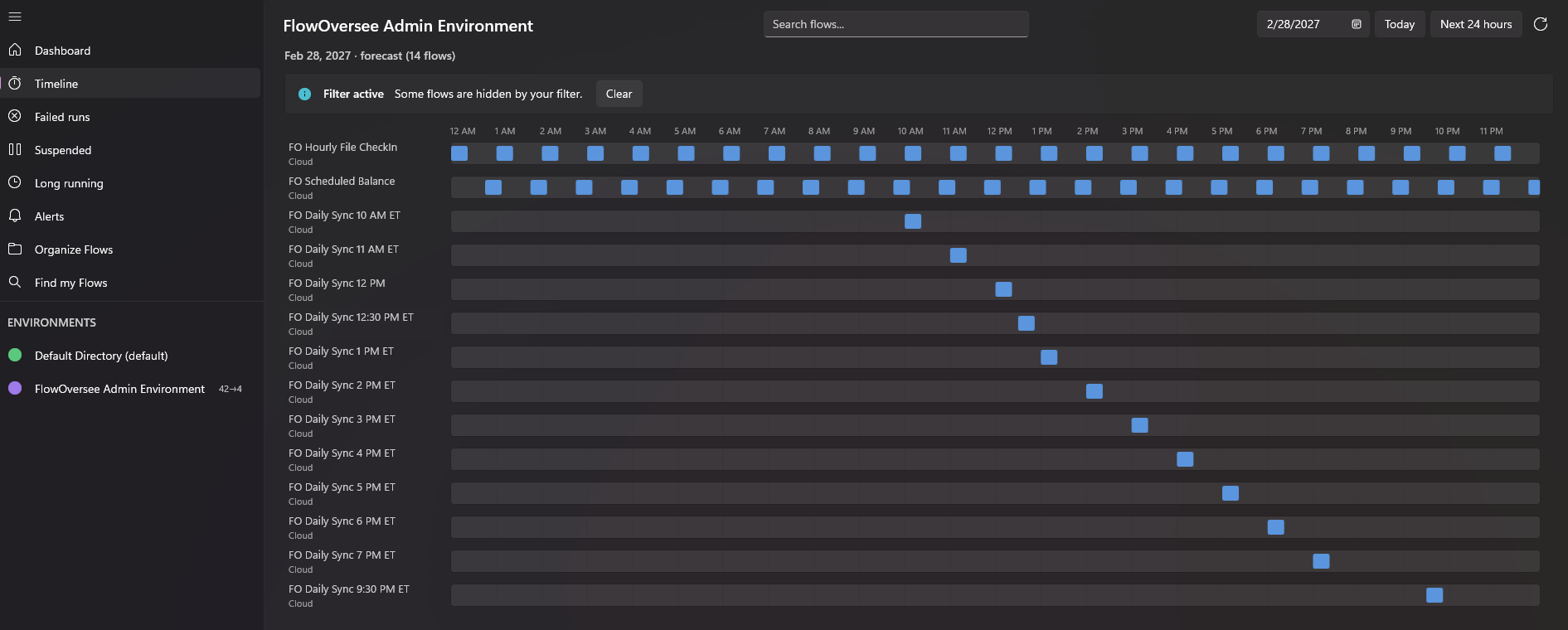
The Timeline on a future date: every scheduled flow is a lane, every projected run a marker — the day's schedule before it happens.
Checking a maintenance window or a holiday
The same question has a wider form: not "when does this flow run next" but "what runs on Saturday night" or "what fires on the holiday Monday when nobody is in." The Timeline answers it by date. The Next 24 hours view rolls forward from the current moment and crosses midnight, so tonight's overnight jobs sit on one strip. For a specific day, pick the date and the timeline lays out what is scheduled to fire that day, before it happens — the check to make before a maintenance window, and the check to make after a schedule change.
Time zone mistakes
The most common way a scheduled flow "runs at the wrong time" is that it does not: it runs at exactly the hour its trigger specifies, in the time zone its trigger specifies, and that is not the time zone the person checking it is in. Each Recurrence trigger carries its own time zone, and a flow built in one region and read from another is off by the difference. FlowOversee keeps the two apart. Every next-run time is shown in the display time zone you choose, with a 12- or 24-hour clock, while the dashboard's inventory export lists each flow's source time zone beside its schedule pattern — so "6:00 in which zone" is a column, not a guess.
Just need to know whether it ran on time?
Knowing the next run is one half of the question; the other half is confirming the run happened. The Daily Monitor marks each chosen flow against its actual run history every day, with a grace window for a few minutes' lateness, and flags a scheduled job that never arrived. That is its own guide: how to check if a Power Automate flow ran.
A note on scope: this guide is one point of view — behavior observed on a single, uncustomized environment and tenant — and it is not the authoritative reference. Portal pages, defaults, and rollout behavior change as Microsoft updates the platform, and licensing, policies, or tenant configuration can change what you see. Always defer to the official Microsoft documentation, your administrator, and your organization's own policies for the authoritative answer in your environment.