What decides whether a flow is visible to an account
In Microsoft Power Automate, flow lists are personal: the question is never “which flows exist” but “which flows can this account see.” FlowOversee reads flow data as the signed-in account, so the portal and FlowOversee answer that question the same way. For cloud flows, the answer comes down to exactly two paths:
- Flows the account created. An account always sees its own flows — whether they live under My flows or inside a solution.
- Flows shared with the account. When a flow's owner shares it (the portal's co-owner model), it becomes visible to the account it was shared with — the same flows the maker portal lists under Shared with me.
Monitoring flows someone else created: the fix is sharing
- Share the flow with the monitoring account. The flow's owner opens it in the Power Automate portal and adds the account under Share as a co-owner. The flow appears for that account on the next refresh. Sharing accepts a security group as well as an individual account, so one share per flow can cover a whole monitoring team. Note that run-only sharing is not enough for monitoring: run-only users cannot view run history.
- Or sign in as the owning account. Sometimes the simplest answer: FlowOversee signed in with the account that created the flows sees all of its cloud flows, solution or not. Desktop flows are the exception — a desktop flow must be published before it appears, regardless of who signs in.
Where solutions fit — and where they do not
Solutions are the platform's home for packaging and application lifecycle management, and the platform is steadily moving flows into Dataverse. Administrators can have new flows stored in a solution automatically with the Create new canvas apps and cloud flows in Dataverse solutions feature setting (the cloud-flows part is on by default for newly provisioned Dataverse environments), and any existing flow can be added to a solution at any time with Add existing. Adding a Dataverse database to an environment does not migrate existing flows into it.
What a solution does not do is change who sees the flow: a solution flow does not appear for an account that neither created it nor had it shared — even one holding an administrator role. Ownership and sharing decide visibility; solutions decide packaging and lifecycle. If the goal is another account seeing the flow, share it.
Before changing any sharing: two quick checks in the app
- The flow filter. FlowOversee can include or exclude flows by name pattern (Settings), and the filter applies everywhere in the app. Every affected page shows a “Filter active” banner with a one-click Clear — if a flow seems missing, look for that banner before anything else.
- Desktop flows need Dataverse — and a publish. Desktop-flow definitions and run sessions are stored in the environment's Dataverse database, so desktop flows only appear in environments that have one — and the Desktop Flows toggle in the header must be on. Desktop flows also have a publish step: a draft that has never been published cannot run and does not yet appear in FlowOversee. Publishing stores the flow in Dataverse, landing it in the environment's default solution automatically with no manual solution work needed; the flow appears in FlowOversee once published.
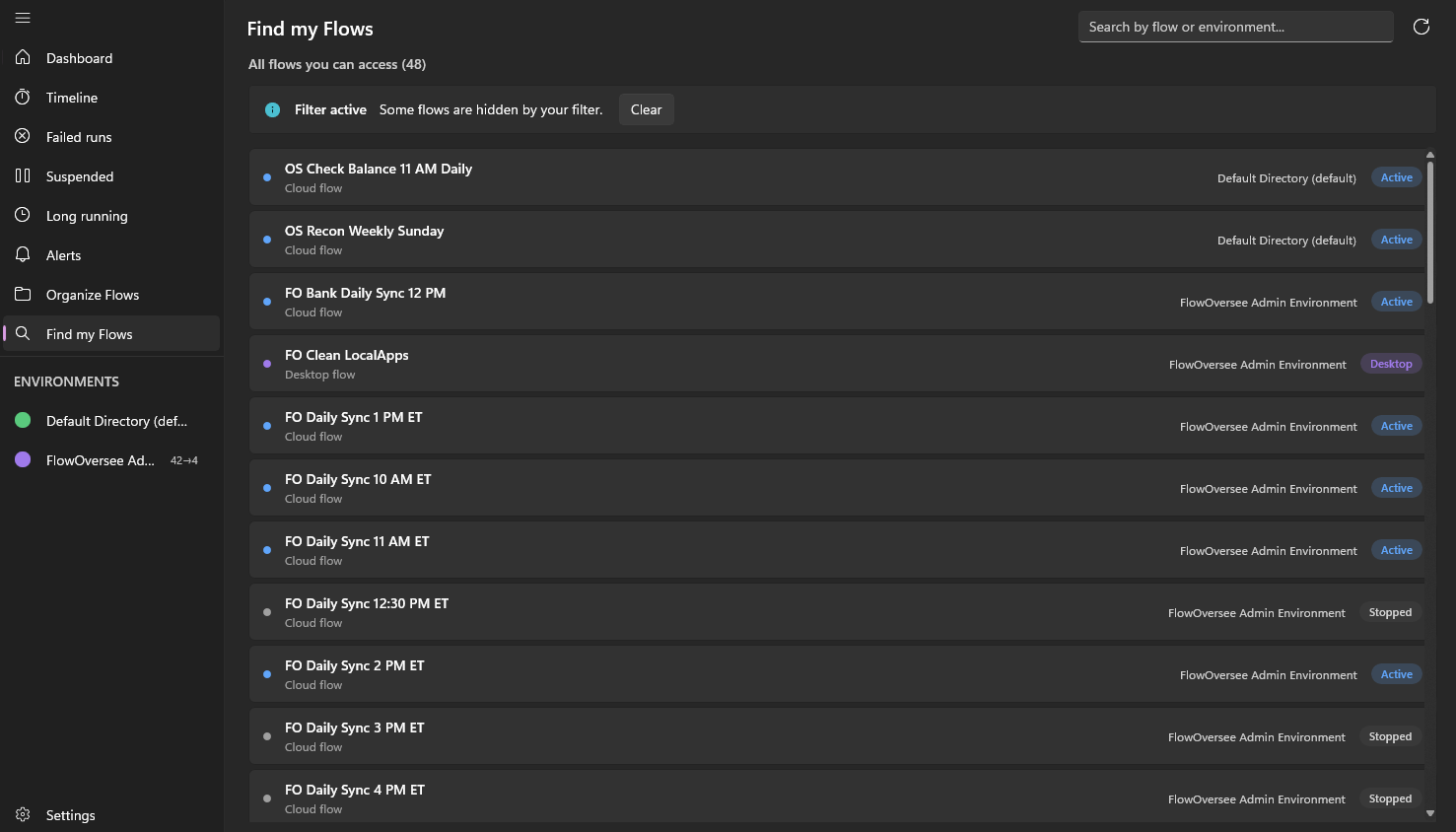
Find my Flows: every flow the signed-in account can reach, across every environment, in one searchable list — if a flow is absent here, the account cannot see it yet.
If something is still missing: the checklist, in order
- Is it the same account? FlowOversee shows what its signed-in account can see, and browser portals often hold a different session. Confirm the account FlowOversee is signed in with is the one expected — it is the easiest thing to get wrong and the fastest to check.
- Can the account see the environment at all? If the environment itself is missing, start one rung up the ladder: why an environment does not appear — access, security roles, and the Dataverse prerequisite for assigning them.
- Does the account match one of the two visibility paths? It created the flow, or the flow was shared with it. If not, share the flow with it — or sign in as the owning account.
- Is a flow filter active? Look for the “Filter active” banner and clear it.
- Is it a desktop flow? Desktop flows appear only in environments with a Dataverse database, only while the Desktop Flows toggle is on, and only after the flow has been published.
- Has enough time passed? New databases, roles, and shares can take fifteen to thirty minutes to be reflected. FlowOversee pulls fresh on every load, so refresh — or restart the app — once the change is live.
- Are there any flows to see? A freshly created environment starts empty, and a freshly added Dataverse database contains no solution flows until someone adds them.
What FlowOversee adds: one search across everything the account can see
The portal answers the visibility question one environment at a time. Find my Flows asks it once: every flow the signed-in account can reach, across every environment, in a single searchable list — so “can this account see that flow anywhere” becomes one search box instead of a tour of environment pickers. And because FlowOversee never caches flow data, there is no stale list to fight: once a flow is shared with the account, the next refresh shows it.
A note on scope: this guide is one point of view — behavior observed on a single, uncustomized environment and tenant — and it is not the authoritative reference. There are many variables: admin-center pages, defaults, and rollout behavior change as Microsoft updates the platform, and custom security roles, licensing, policies, or tenant configuration can change what you see. Always defer to the official Microsoft documentation, your administrator, and your organization's own policies and guardrails for the authoritative answer in your environment.