What “all-in-one” should mean
The phrase is easy to claim and worth defining. For flow monitoring, all-in-one means one view of every flow, not one flow at a time; every failure mode, not only the loud one — runs that fail, flows that silently do not run, flows whose state changes underneath you, and runs that go on far too long; schedule awareness, so the tool knows what should have run and what runs next; a way to organize and find flows once there are more than a screenful; and alerts that reach you while the app is open, even minimized. It also means doing all of that from one sign-in, with current data, and without changing anything in Power Automate.
FlowOversee is built around that definition. It opens to the whole environment at once, keeps each failure mode on its own page, knows every flow’s schedule, lets you organize and search the list, and keeps checking while the app is open, even minimized — all read-only, all from your own sign-in.
The checklist: eight things one tool should cover
- Every flow in one list. Cloud flows and desktop flows side by side, in every environment the account can reach, counted by status the moment the app opens. In FlowOversee this is the dashboard: running, active, stopped, failed, suspended, cancelled — sorted, searchable, and loaded up front.
- Failed runs, surfaced. A standing list of runs that ended in an error, with the error detail one click away rather than a flow-by-flow search. FlowOversee keeps them on the Failed Runs page and in the details panel of every flow.
- State changes: suspended and turned off. A flow that is suspended or turned off produces no failure — only an absence of runs. A monitoring tool should show the state change itself. FlowOversee counts suspended flows and stopped flows on the dashboard and can alert on both.
- Runs that go on too long. A hung run does not fail; it simply never finishes while everything downstream waits. FlowOversee lists every run past a threshold you pick, live, with the elapsed time counting against it, plus a history of runs that finished late — see Long-Running Flows.
- Did the scheduled job run? The quiet question behind most monitoring. The Daily Monitor marks each chosen flow against its actual run history every day, with a grace window for a few minutes’ lateness, and flags a scheduled job that never arrived.
- When does it run next? A monitoring tool should know the schedule, not only the history. FlowOversee shows a next-run column on the dashboard and draws the next 24 hours of scheduled runs on the timeline, alongside a replay of any past day from run history.
- Alerts that reach you. Monitoring that only works while you are looking is a report, not a monitor. Optional alerts check on the pace you choose while the app is open, even minimized, and raise a Windows toast for failed runs, suspended flows, and turned-off flows; needs-attention checks learn each flow’s own rhythm to flag failure streaks, duration spikes, and expected runs that never came.
- Organize, find, and export. Once there are dozens of flows, the list itself needs structure. FlowOversee adds local folders, one search across every environment on the tenant with Find my Flows, an include/exclude flow filter that scopes the whole app, and a one-click CSV or JSON export of the full flow inventory.
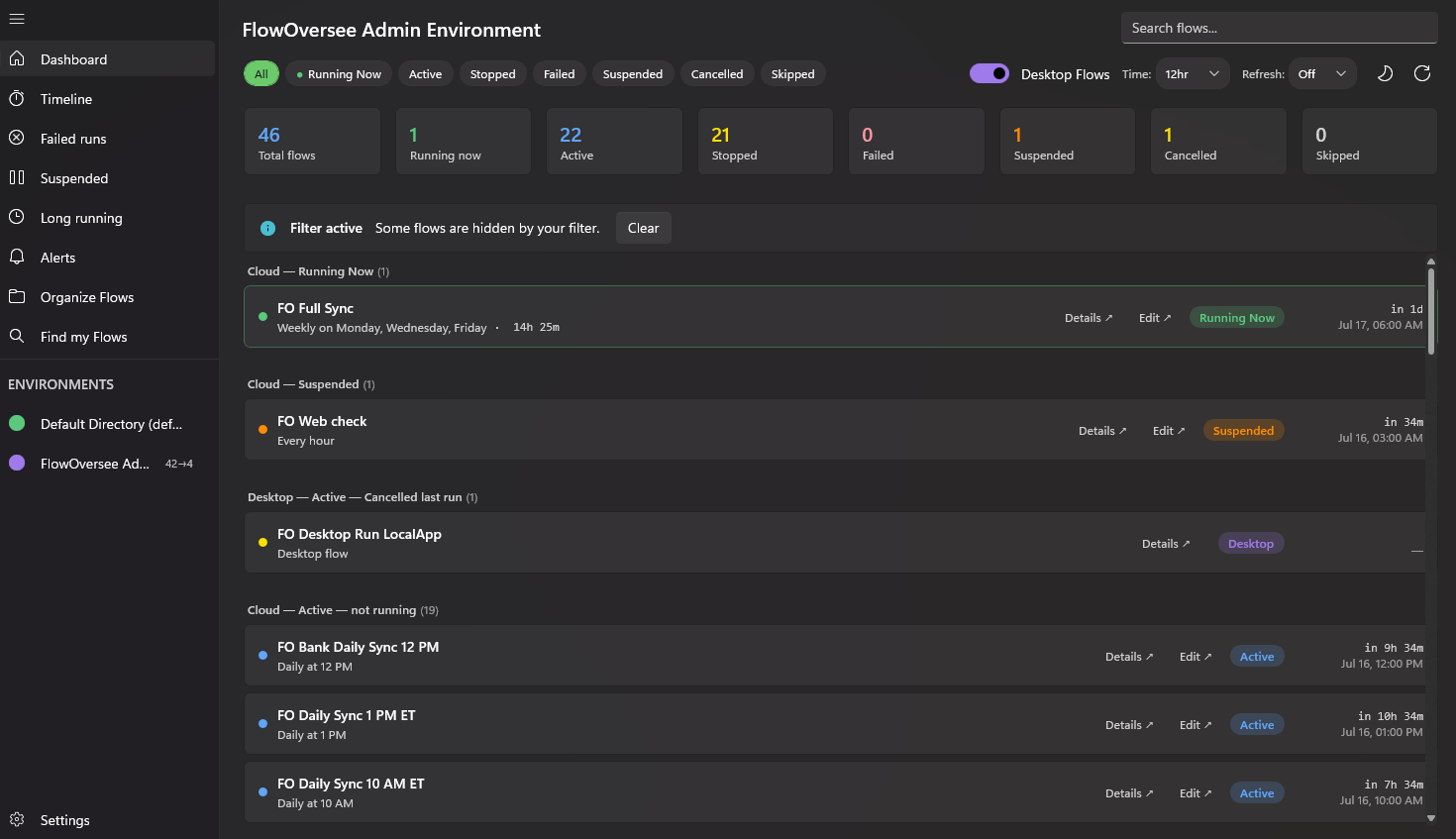
The dashboard on open: every flow in the environment, every status, cloud and desktop together.
What holds it together
Eight views in one window is only half of all-in-one. The other half is what sits underneath every view. FlowOversee signs in once with your own work account and can keep more than one account signed in, switching between them without signing out. Nothing is cached: statuses, counts, and run times are fetched fresh on every load, so what you see is what is true right now. It is read-only by design, with delegated read-only permissions — it can watch your flows but never run, change, or delete them. And it is private by design: local-first, no telemetry, no server, no account with the developer; it talks only to official Microsoft endpoints with your credentials.