Spot a long run in the portal
- Open the flow in the Power Automate portal and look at its run history. Runs still in progress show a Running status with their start time.
- Open the run to see which step is currently in progress — usually the fastest clue to what it is waiting for.
- A genuinely stuck run can be cancelled from the run itself.
One thing worth knowing: a cloud flow run can legitimately continue for up to 30 days before the platform times it out. A hung run is not a failure yet — it is still "running" — which is exactly why elapsed time is the signal to watch.
What FlowOversee adds: every long run, one list, live
FlowOversee's Long Running page asks you one question — what does "too long" mean for your world? — and then watches everything. Pick a threshold from 5 minutes to a day, and every run in the environment still in progress past that line appears in one list, with the elapsed time counting against it. Search it, apply your flow filter, and open any flow's details without leaving the app.
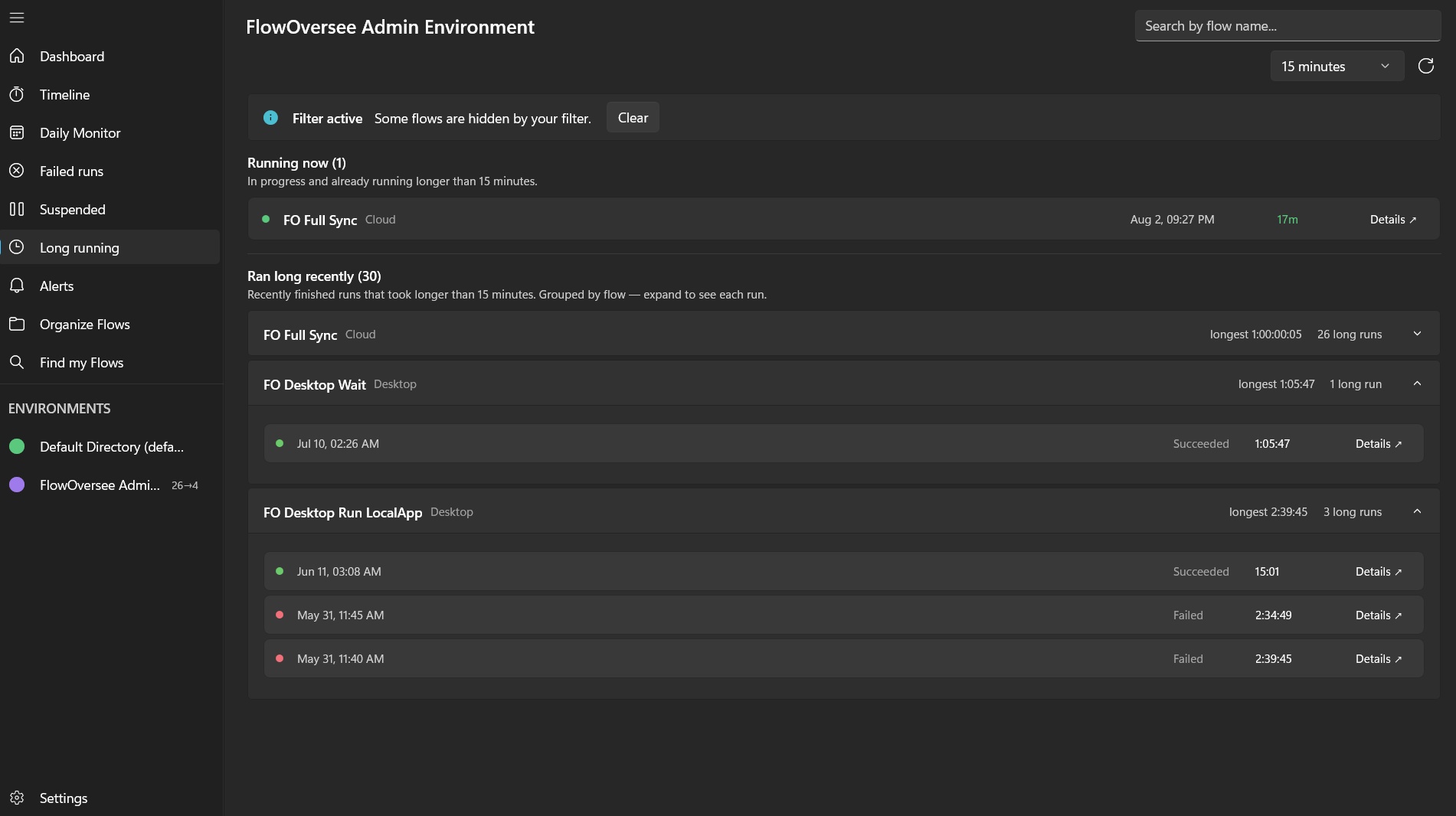
Over-threshold runs happening right now, with a grouped history of recent runs that also went over, below.
And the ones that finished late
The overnight job that took four hours and eventually succeeded looks like any other success by morning. FlowOversee keeps a "Ran long recently" section for exactly those: finished runs that went over your threshold, grouped by flow so a repeat offender shows once with a count. Expand a flow to see each long run and how long it actually took. The current and recent sections filter independently, so live triage and history digging do not fight each other.
If you would rather not watch at all, the optional needs-attention checks learn each flow's own normal duration and flag a spike against it automatically. Full details on the Long-Running Flows feature page, or see it live in the interactive demo.