The three situations people call "skipped"
- A trigger condition filtered the event out. Trigger conditions let a flow decide up front whether an event calls for a run. When the condition evaluates false, the flow correctly does not start — and because no run was needed, no run appears in run history. That is the feature working exactly as designed: the whole point is to spend runs only on events that match.
- An action inside a run was skipped. Here the flow ran, but part of it did not: a condition branch went the other way, or run-after settings meant a step only fires on certain outcomes. Open the run in the Power Automate portal and each step shows its result — the steps the logic bypassed display as Skipped while the branch that applied executed. A run with skipped actions can still succeed.
- You expected a run, and there is nothing. No failure, no entry — just an absence. Whether the trigger condition filtered the event, the schedule was off, or something upstream went quiet, the result looks identical: silence. This is the case that matters most, because there is nothing to open — and it is the one FlowOversee is built for.
What FlowOversee adds: the full picture of what should have run
The third situation is an expectations question, not a history question — so FlowOversee lets you declare the expectation. In the Daily Monitor, you name the flows you expect to run and on what rhythm: daily, weekly on the weekdays you choose, or monthly on the days of the month you choose, mirroring each flow's own recurrence. Each day, the app marks every chosen flow off against its actual run history. A flow that ran shows a check with the run's time and status; a flow with no matching run is flagged as a miss — whatever the reason it stayed silent. Grace rules cover jobs that start a little off-schedule, and per-flow time-zone overrides keep the day boundaries honest.
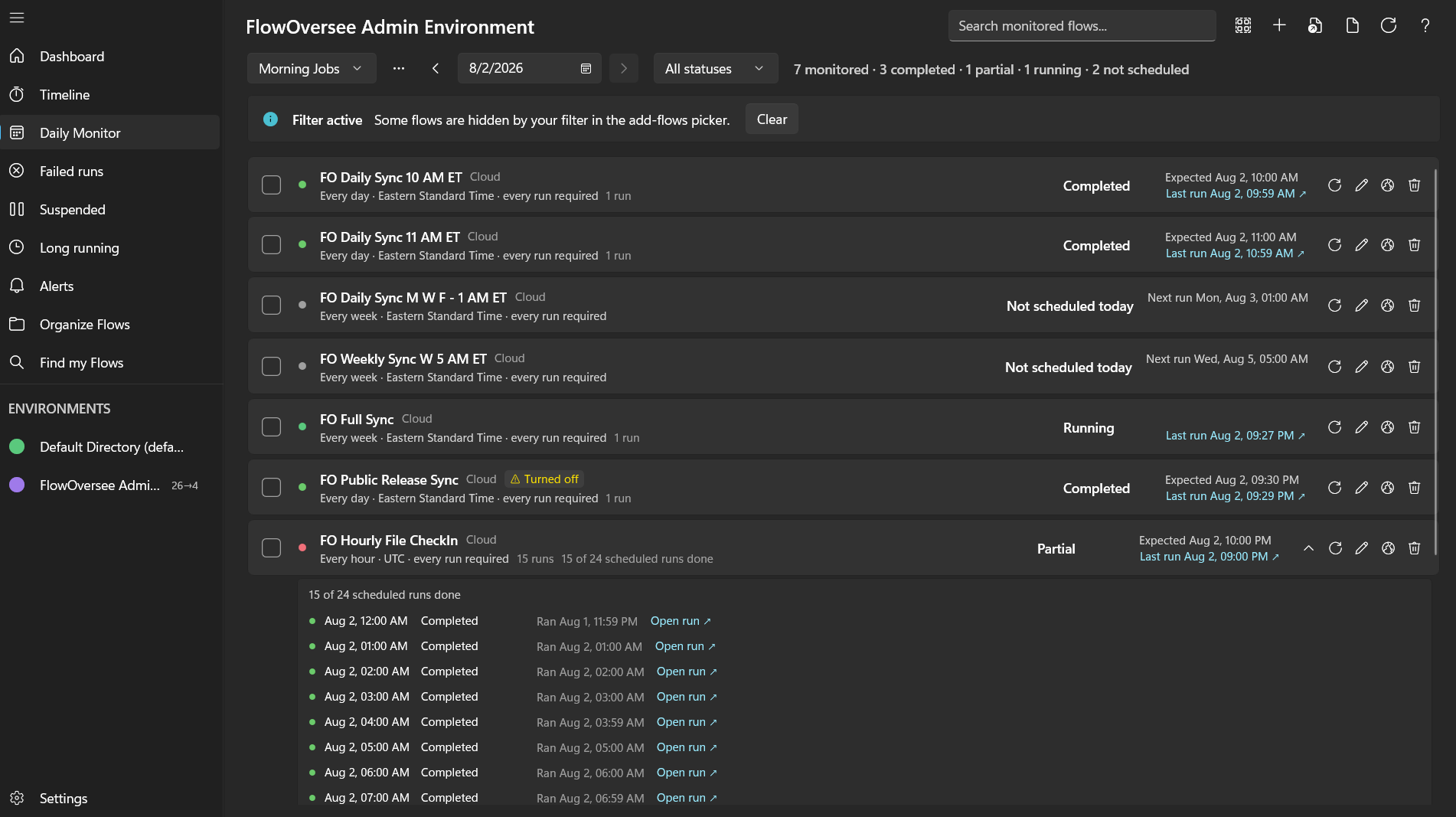
The Daily Monitor: every expected flow checked off against its real run history — a silent flow shows up as a miss instead of blending in.
Named templates make the rhythms concrete: a weekday list, a month-end list, a critical-only list — each with its own flows and rules, so the question "did everything I expected actually run?" is answered on one checklist instead of assembled from memory. Read more on the Daily Monitor feature page, or watch a miss get caught in the interactive demo.