The usual reasons a flow is turned off
- Someone turned it off. The owner, a co-owner, or an administrator switched the flow off from its details page — deliberately, or while working on something else. The details page shows the state; the flow's sharing list shows who could have done it.
- It kept failing. A flow that fails continuously for an extended period is turned off by the platform, and the owner is emailed. The fix is the failure itself — usually a connection that needs a fresh sign-in, or a step that no longer matches what it acts on — and then turning the flow back on.
- It sat unused. A flow whose trigger has not fired successfully for a long stretch is turned off by the platform as inactive, with an email to the owner beforehand. Seasonal jobs and flows waiting on rare events are the usual casualties; turning the flow back on restores it.
- Something else — but that is a suspension. Billing, quota, licensing, and policy problems generally suspend a flow rather than turn it off: the platform pauses it and lifts the pause once the cause is resolved. That is a different state with a different fix, covered in the guide on suspended flows.
In every platform-initiated case, the email the owner receives names the reason and the window that applied. Treat that email as the authoritative account of why it happened.
Where to check in the portal
- The flow's details page. Open the flow in the Power Automate portal. Its details page shows whether it is on, and a turned-off flow can be switched back on from there.
- The run history. A turned-off flow records no runs and no trigger checks, so the last entry in run history is the last thing that happened before it was turned off — which usually dates the change.
- The connections. If failure was the reason, check the flow's connections before turning it back on; a flow turned on with the same broken connection fails again from the first run.
What FlowOversee adds: the turned-off flow is flagged, not discovered
The trouble with a turned-off flow is timing. The email arrives once; the flow stays off until someone notices, and what usually gets noticed is the missing output days later. FlowOversee is built to shorten that gap. The Dashboard counts stopped — turned-off — flows the moment it loads and sorts them to the bottom, so a flow that is off stands out from the ones that are on. Turn on the optional background alerts, and a flow that was on and is seen off raises a Windows notification — its own trigger type, separate from the trigger for suspended flows, each switchable on its own. And the Daily Monitor flags the scheduled job that did not run, whether or not the alert is on.
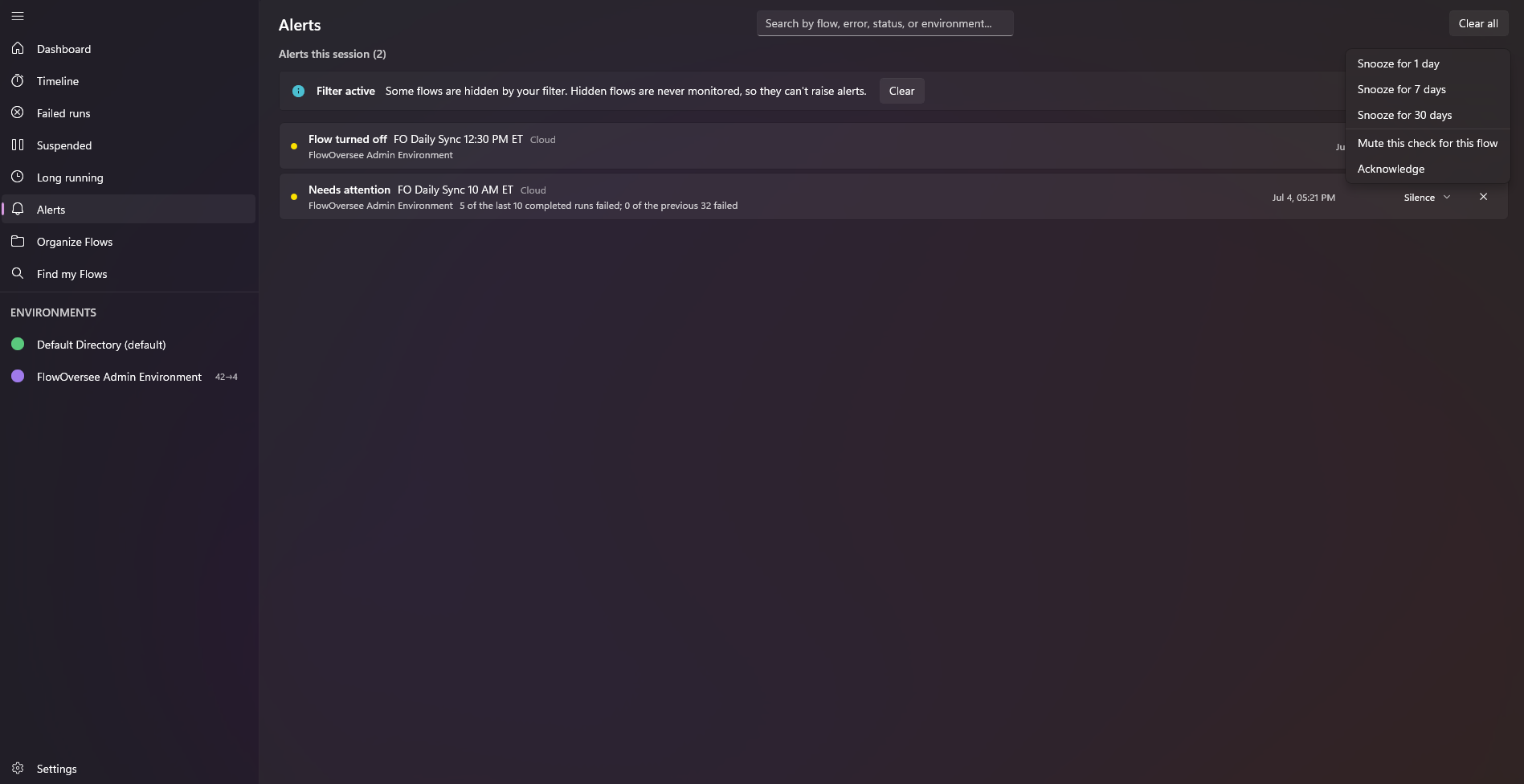
The Alerts page keeps every flagged change until it is dismissed — a flow seen off, a suspension, a failed run — with a badge in the sidebar while anything is waiting.
Turned off versus suspended
The two states look alike from the outside — nothing runs — and the fix is different. Turned off is set by a person or by the platform and stays set until someone switches the flow on. Suspended is a pause the platform imposes for a reason it names, and it lifts when the cause is resolved. The portal's flow list reports both as stopped, so FlowOversee reads each flow's detail to tell them apart, shows the suspension reason where there is one, and keeps the two on separate alert triggers. If the flow shows a suspension notice, start with the suspended flows guide instead.
A note on scope: this guide is one point of view — behavior observed on a single, uncustomized environment and tenant — and it is not the authoritative reference. The conditions under which the platform turns a flow off, the periods involved, and the notifications it sends change as Microsoft updates the platform and can differ by license, plan, and tenant configuration. Always defer to the official Microsoft documentation, the platform's own notification, your administrator, and your organization's policies for the authoritative answer in your environment.